

You can keep track of all stock transfers that have taken place across all of your business locations in Qoblex. It enables you to keep track of your inventory, streamline your business procedures, and guarantee the accuracy of your financial data.
This article covers stock transfers across locations within your Qoblex. It will guide you through the Transfers module and how to utilize it according to your business needs.
Stock Transfers module view
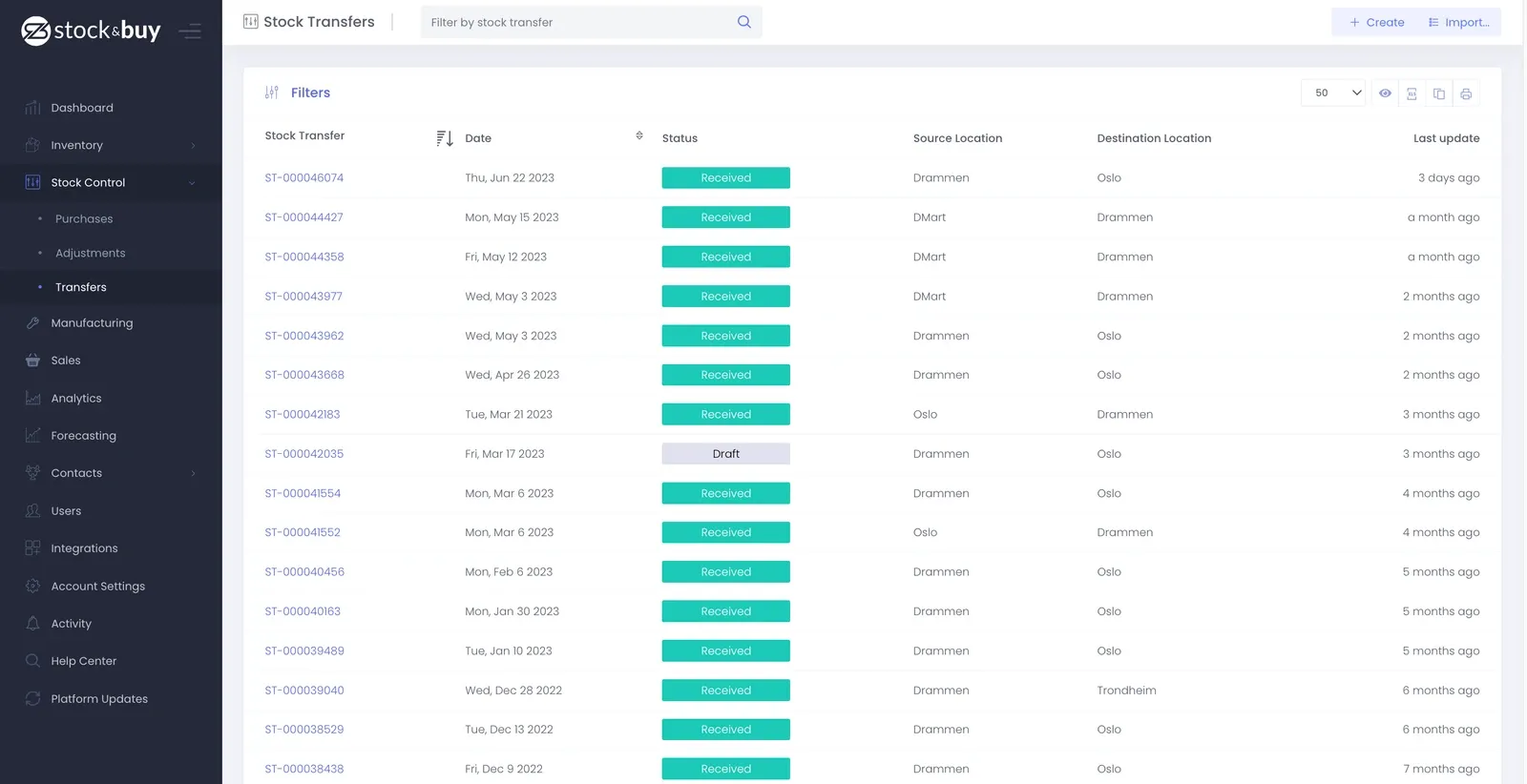
To navigate to your Transfers module, go to Stock Control and choose Transfers. In the module, you can see the information about stock transfers activities that have occurred:
- Stock Transfer number
- Date
- Status
- Source Location
- Destination Location
- Last Update
To effectively manage and track the stock updates in your inventory, you can filter out your view according to the transfer’s date, status, source, and destination location.
Create a Stock Transfer
- Go to Stock Control > Transfers.
- At the top-right corner, click + Create.
- A new page will appear to fill out the necessary information about the stock transfer.
- If you want to add a new line item, click Add a new line.
- To scan line items instead, click Scan new line.
- At the top-right corner, click Receive.
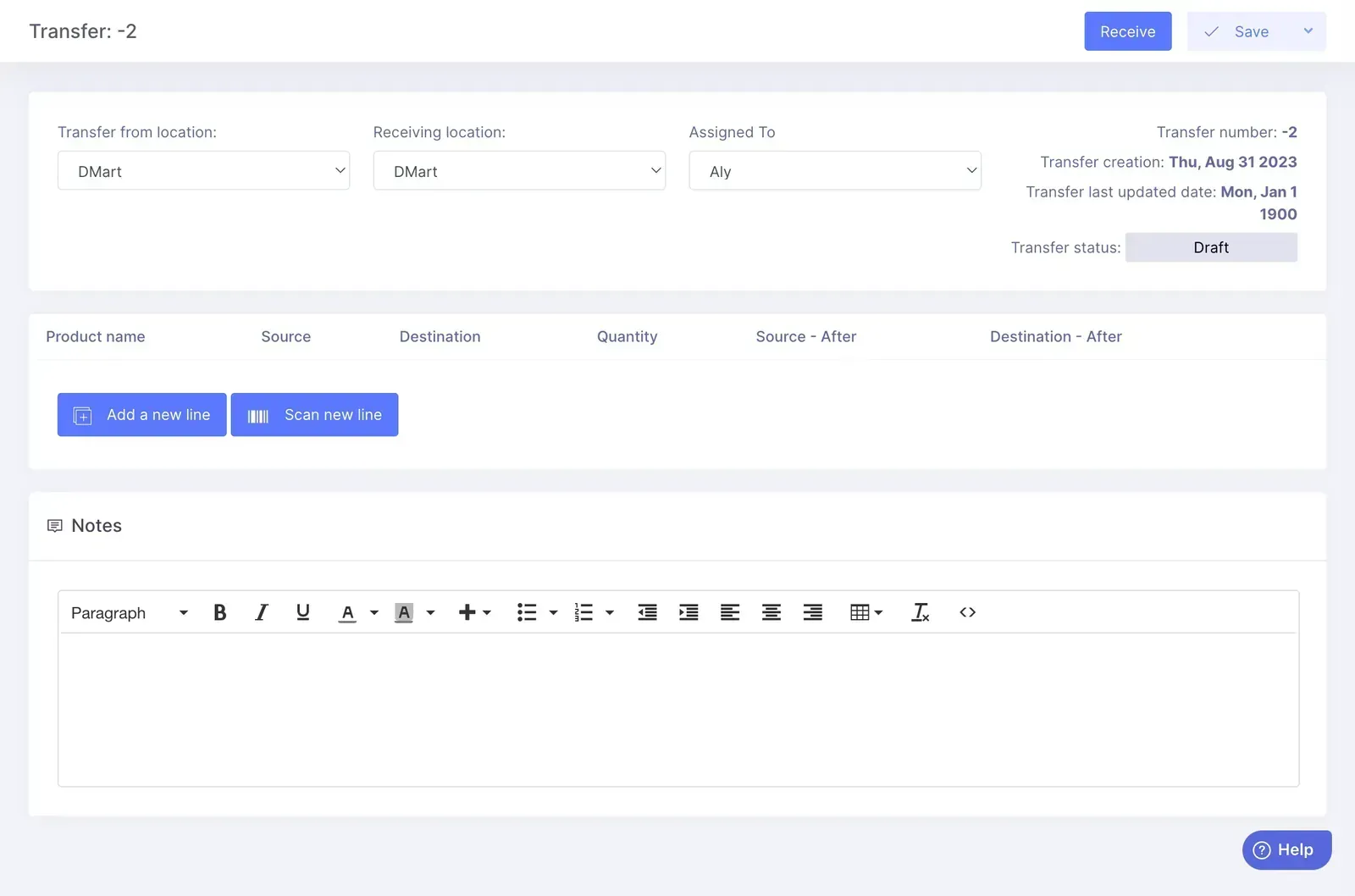
The fields of information that are needed to create a stock transfer are the following:
| Transfer from location | The source warehouse location where the products that you want to transfer are currently in place. |
| Receiving location | The destination warehouse location that you want to move your products to. |
| Assigned To | The name of the user who is making the transfer. |
| Product name | The line items or products that you want to transfer. |
| Quantity | The number of line items that you want to transfer. |
| Notes | Additional comments or remarks you want to include to provide more information about the transfer. |
Import Stock Transfers
You can download a CSV file from your Transfers module that you can fill out with your stock transfer information using a spreadsheet application. This enables you to transfer your products in bulk across your locations. The system will automatically apply the stock transfer of your products or variants after you upload the modified CSV file back to Qoblex.
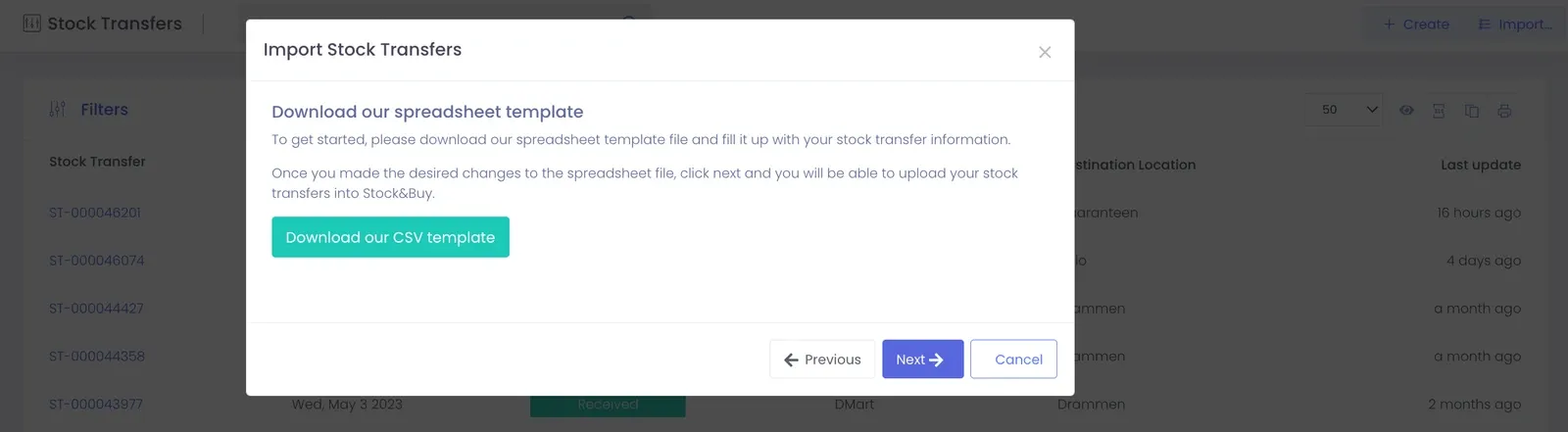
To import Stock Transfers:
- Go to Stock Control > Transfers.
- At the top-right corner, click Import.
- Click Next.
- Download our CSV template.
- Click Next.
- Modify the CSV template by putting information about your stock transfer.
- Upload the modified spreadsheet.
- Click Next.
- The dialog box will show you the result of the import operation.
- Click Refresh the page.