


A guide for operators who searched for a barcode scanner and want to know which problem it is supposed to solve first.
It usually starts with a count that doesn’t match. Someone walks the shelves with a clipboard and types the tally sheet in on Friday. Or a delivery gets shelved and three days later you find the supplier sent the 500 ml bottles instead of the 1 litre ones. Or a customer gets the blue variant when they ordered the grey. Each time, the fix that comes to mind is the same: we should be scanning barcodes. So you search for a scanner.
That instinct is right about the problem and often wrong about the first step. The clipboard was a reasonable way to run a small stockroom. It stops working when there are too many SKUs, counters, or orders for anyone to keep the numbers straight from memory. What fixes that is not the scanner in your hand. It is having somewhere for the scan to go.
What does “inventory software with a barcode scanner” actually mean?
Two searches hiding in one phrase
This phrase hides two questions. Which scanner should I buy? And which inventory system does something useful when I scan? That’s why the results mix marketplace listings, free apps, and software guides.
A barcode scanner on its own reads a barcode and turns it into text, the same characters you would type on a keyboard. A barcode inventory system is the software that takes that text, matches it to a product, and records what happened: this item arrived, was counted, was picked. You don’t need special software to make a scanner produce characters. You do need inventory software built around scanning if you want those characters to change your stock record.
What scanning changes
A scan matches a physical unit to a system record instantly, instead of someone reading a SKU off a box or copying it from a tally sheet later. Fewer steps between the shelf and the record means fewer places for a wrong digit to creep in.
Do you need to buy a barcode scanner first?
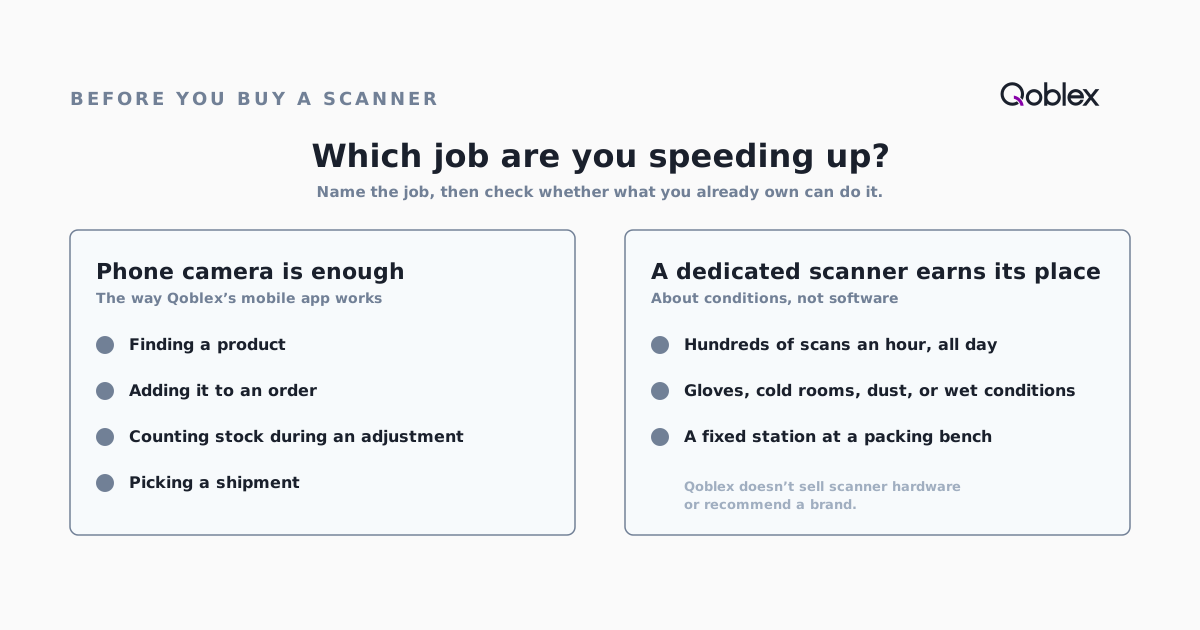
Usually not. Name the job you want to speed up, then check whether the devices you have can do it.
What a phone camera can do
In Qoblex’s mobile app, the phone camera is the scanner. It reads all common barcode formats, and you scan to find a product, add it to an order, or count it. The app runs on iPhone, iPad and Android, and the product page answers the question directly: “Do I need a barcode scanner? No.” The phone your team already carries is the hardware.
If you already own handheld scanners
Keep them. Scanners you already own work with the Qoblex web app on a desktop for receiving and recording supplier bills, and for stock counts: the guide to counting stock with scanners notes that most handheld scanners do the typing and submitting for you in the “Search by SKU or barcode” field. Any plug-and-play USB or Bluetooth barcode scanner works, because it types into the field the way a keyboard would. There is nothing Qoblex-specific to pair or configure.
When dedicated hardware earns its place
The good reasons to buy a dedicated scanner are about conditions, not software. If someone scans hundreds of items an hour, all day, a purpose-built device is faster and more comfortable than a phone. Gloves, cold rooms, and dusty or wet environments are harder on phones than on rugged handhelds. A fixed station at a packing bench makes sense once volume is steady. Qoblex doesn’t sell scanners or recommend a brand; our guide to choosing the right barcode scanner covers the hardware side.
What barcode scanning actually fixes in inventory management
Scanning improves accuracy in three places. If none of them hurt today, it will feel like overhead.
Receiving: scan against the purchase order
The expensive mistake at receiving is shelving the wrong item and finding out later. Scanning against the purchase order catches it at the door. In Qoblex, a purchase order has a With a Barcode Scanner option next to Receive: each scan is matched to an order line by barcode, capped at what is still outstanding, and Qoblex creates a draft goods receipt note (GRN) for you to review and authorize. Batch, lot, or serial details are captured in a Receive Batch dialog at that point, as with manual receiving.
You can then print product labels from a template, from the Products list or the GRN. With the template’s barcode setting on, the label carries a Code 128 barcode from the product’s barcode field, so items that arrived unlabelled can be scanned from then on.
Counting: scan the shelf where the shelf is
The tally sheet is where count errors live, because every number is written once and typed again. Scanning removes the second step: what you count is what gets recorded, with your name on it. On the desktop, the stock adjustment has a Scanner panel where each scan records a unit, with Add to build a running count and Set to state the total you counted, including zero for an empty shelf.
Picking: scan as you pick
Picking errors reach the customer, so they are the most visible of the three. Scanning as you pick catches the wrong variant before it goes in the box. The mobile app handles picking, packing and dispatch on the phone, and on the desktop the dropdown next to Ship offers a barcode option that builds the shipment from what you scan. Batch and serial tracked items get a dialog to record which ones were picked.
What proper barcode-driven inventory tracking actually requires
Whichever software you choose, these are the questions worth asking.
A live record the scan updates
The scan should change the real stock record straight away. If scans land in an app that uploads overnight, or a spreadsheet beside the real system, you’ve added a step instead of removing one.
A place for the scan at every stage
A lookup tool doesn’t fix much on its own. The scan needs to become a GRN line at receiving, a counted quantity at the count, and a shipment line at picking.
A record of who scanned what, and when
An updated total is not an audit trail. In Qoblex’s stock count, the Scan Log shows each Add or Set with its quantity, running total and time, and misses (a product not found, a scan error) collect under Missed Scans to work through before the count closes. Several people can count the same adjustment at once; each counter’s scans stay a separate record, and once a second person counts, the adjustment must be reconciled before it can be authorized. That answers “who counted this shelf?” without asking around.
The honest limit
Scanning a batch- or lot-tracked product during a stock count in Qoblex currently shows “Not Supported Yet” and records no count. Those products are counted by hand and the number is passed to whoever reconciles the adjustment. Receiving and picking still capture batch details as described above. If most of your catalogue is batch tracked and stocktakes are your main reason for scanning, know this going in.
How Qoblex uses barcode scanning
Qoblex sits between spreadsheets and a full ERP: the operational layer for inventory, purchasing, and fulfilment, while your existing tools keep their jobs. Scanning is how much of its data arrives.
The mobile app: the camera is the scanner
The mobile app covers the jobs away from a desk: sales orders, stocktakes and adjustments, picking, packing and dispatch, and looking up the price for the customer in front of you. It works against the live account, with the same permissions as the desktop.
The desktop web app: receive, ship, count
On the desktop, three workflows accept scans: receiving a purchase order, building a shipment, and counting a stock adjustment. Any plug-and-play USB or Bluetooth barcode scanner can drive all three.
One stock record, not a spreadsheet beside it
There is no separate mobile copy of your data. A scan updates the same Qoblex account the office uses, which is the point of keeping inventory control in one place. Xero or QuickBooks Online stays your books; Shopify or WooCommerce stays your storefront. For more than one site, warehouse management covers locations and pick and pack.
Who this is for
Small and growing teams with one or a few locations, a catalogue too big to count from memory, and regular receiving, counting, and picking. Especially teams on Xero, QuickBooks Online, Shopify, or WooCommerce whose stock number there no longer tells the truth.
Which method fits which job
| Job | Phone camera (Qoblex mobile app) | Existing handheld scanner + Qoblex web app | No scanner (manual entry) |
|---|---|---|---|
| Receiving a purchase order | Receive in the web app | Yes: With a Barcode Scanner matches scans to the order | Yes: select lines and quantities by hand |
| Counting a stocktake or adjustment | Yes: scan to count | Yes: the Scanner panel accepts any plug-and-play scanner | Yes: search by SKU and enter quantities |
| Picking a shipment | Yes: scan as you pick | Yes: the barcode option next to Ship | Yes: tick lines by hand |
| Looking up a price in front of a customer | Yes | Not applicable (desktop) | Search by name or SKU |
| Counting batch- or lot-tracked products | Not supported yet: count by hand | Not supported yet: count by hand | Yes, the only path today |
| Extra hardware cost | None: uses the phone you have | None if already owned | None |
When you don’t need barcode scanning at all
Scanning fixes a specific kind of mess. No mess, no need.
A handful of SKUs
If you carry twenty products and can see them all from where you stand, counting by eye and a stock figure next to your accounting software still tell the truth. A spreadsheet is enough while one person owns it and it matches the shelf. Change when it doesn’t.
A single shop where the till does the work
In a single-location store where stock only leaves through the point of sale and deliveries are small enough to check by eye, the POS already records sales. If no receiving, counting, or picking workflow is causing errors, a scanner adds a step without removing one.
You need more than a handheld can keep up with
At the other end, some operations outgrow handheld scanning: conveyor lines, pallets moving through dock doors, or counts that can’t depend on pointing a device at each item. There, fixed scanning or RFID is the right answer, and a different investment. Our guide to RFID inventory management covers when it makes sense.
What it costs
Scanning carries no separate charge in Qoblex. The mobile app is a paid add-on on the Starter and Business plans and included on Scale; current figures are on the pricing page. A scanner you already own costs nothing extra with the desktop app. A new dedicated scanner is a one-time hardware purchase outside any subscription; a phone the team already carries adds nothing.
Frequently asked questions
Does inventory software need a barcode scanner?
No. Scanning speeds up receiving, counting, and picking, but a phone camera can do much of that in software built for it. Qoblex’s mobile app uses the camera as the scanner for finding products, building orders, and counting stock. A dedicated scanner is optional.
Can I use my phone as a barcode scanner for inventory?
Yes. The Qoblex mobile app runs on iPhone, iPad, and Android, and its camera scanner reads all common barcode formats for finding products, building sales orders, picking shipments, and counting stock.
Does my existing barcode scanner still work if I already own one?
Yes, through the desktop web app. Any plug-and-play USB or Bluetooth barcode scanner types into the search field like a keyboard, so receiving a purchase order, building a shipment, and counting a stock adjustment all accept it.
What does barcode scanning actually fix in inventory management?
Three jobs: receiving (matching deliveries to the purchase order), counting (recording at the shelf, not on a tally sheet), and picking (catching the wrong variant before it ships). In Qoblex, the mobile app scans for counting and picking; the desktop web app for receiving, shipping, and counting.
Does barcode scanning work with batch or lot tracked products?
For receiving and picking, yes: batch, lot, and serial details are captured in a dialog afterwards. For stock counts, not yet. Scanning a batch- or lot-tracked product during a count shows “Not Supported Yet” and records no count, so it is counted by hand and passed to whoever reconciles the adjustment.
How much does barcode scanning cost with Qoblex?
Scanning has no separate charge. The mobile app is a paid add-on on Starter and Business and included on Scale; see the pricing page for current figures. Using your own scanner with the desktop app costs nothing extra.