


QuickBooks handles your books, but it won’t run your entire business alone. The best QuickBooks integrations plug the gaps between accounting, inventory, sales, and operations so you stop toggling between apps and start making decisions from a single source of truth. With over 29 million small businesses using QuickBooks in the US and more than 6.5 million customers worldwide, the integration ecosystem is massive. That’s great news if you know where to look, but overwhelming if you don’t.
This guide breaks down the top integrations by category, explains how to pick the right ones, and covers the setup process so you can get up and running fast.
Why Your Business Needs QuickBooks Integrations
QuickBooks Online and QuickBooks Desktop are strong accounting platforms on their own. You can track income and expenses, send invoices, reconcile bank transactions, and run financial reports. But that’s where the story ends.
Managing 5,000 SKUs across three warehouses? QuickBooks can’t handle that alone. Want your Shopify orders to automatically create invoices? Not without an integration. Running employee compensation for a 20-person team with GPS time tracking? You’ll require an add-on for that.
Here’s what integrations actually solve:
- Eliminating double data entry. Customer records, invoices, bills, and financial reports sync automatically between platforms. No more copying data from your CRM into QuickBooks by hand.
- Getting real-time visibility. When your accounting, expense tracking, compensation, and sales data all feed into QuickBooks, you see the full picture of your business at any moment.
- Automating repetitive workflows. Late payment reminders, receipt scanning, invoice creation from e-commerce orders. These tasks eat hours every week if done manually.
The QuickBooks App Store lists over 750 integrations. Not all of them are worth your time. Let’s narrow it down.
How to Choose the Right QuickBooks Integration
Before downloading every app that looks interesting, consider four things:
1. QBO vs. QBD compatibility. Some integrations only work with QuickBooks Online. Others support both Online and Desktop. If you’re on Desktop, check compatibility first. Note that QuickBooks has been gradually shifting features toward QBO, so Desktop-only options are shrinking.
2. Data sync quality. The best integrations sync data in both directions and in real time. One-way syncs that update once a day create reconciliation headaches. Ask whether the integration pulls and pushes data, and how frequently.
3. Total cost. Many integrations charge a monthly subscription on top of your QuickBooks plan. A $30/month add-on doesn’t sound like much until you’re running five of them. Add up the full stack cost before committing.
4. Native vs. third-party. QuickBooks now offers native connectors for several e-commerce platforms (eBay, Amazon, Etsy, BigCommerce, Squarespace) built directly into the QuickBooks interface. These replaced the old OneSaaS/Intuit Connector approach in 2025. Native connectors tend to be reliable and easier to troubleshoot than third-party alternatives.
Best QuickBooks Integrations by Category
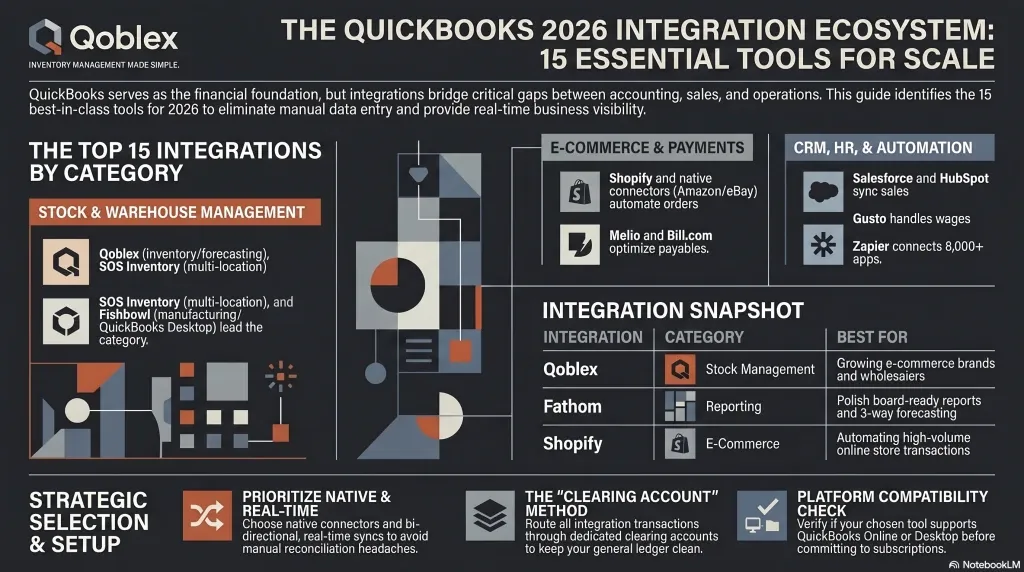
Stock and Warehouse Management
If you sell physical products, QuickBooks’ built-in tracking hits its limits quickly. These solutions fill the gap.
Qoblex is a stock management system built for growing e-commerce brands, wholesalers, and manufacturers. It connects natively with QuickBooks Online to sync product levels, purchase orders, and cost data in real time. What sets it apart is the combination of demand forecasting, multi-warehouse management, and manufacturing workflows (including bill of materials tracking) in a single system. For businesses managing $100K+ in merchandise across Shopify, WooCommerce, or Amazon, it’s a strong fit. A 14-day free trial lets you test the QuickBooks sync before committing.
SOS Inventory handles serial numbers, lot tracking, and job costing synced to QBO. It works well for businesses with multiple locations that require stock transfers and work-in-progress tracking. Pricing starts around $49/month.
Fishbowl specializes in manufacturing and warehouse management alongside QuickBooks Desktop. If your business centers around production, Fishbowl is the veteran choice in this space.
Accounting and Financial Reporting
QuickBooks generates standard financial statements, but when you need rolling forecasts, KPI dashboards, or multi-entity consolidation, these tools take over.
Fathom is an all-in-one reporting platform trusted by over 99,000 businesses. It connects to both QBO and QBD and delivers three-way forecasting (P&L, balance sheet, and cash flow in one model), custom KPI tracking, and polished board-ready reports. It’s an Intuit Accountant Platinum Partner, which means the integration meets Intuit’s security and data standards. Mid-tier pricing.
Spotlight Reporting takes a modular approach with drag-and-drop charts and scenario planning tools. It’s designed for accounting firms that deliver advisory services. The visual output looks professional, though data refresh can require manual action.
Power BI paired with a QuickBooks connector turns your financial data into interactive dashboards. If you already use Microsoft’s ecosystem, this integration eliminates manual report building. Auto-updated P&L, balance sheet, and cash flow visualizations appear on a single dashboard.
CRM and Sales
Keeping your sales pipeline and accounting in sync saves hours of manual reconciliation.
Salesforce is the obvious choice for larger teams. With a QuickBooks connector, customer interactions logged in Salesforce sync with QuickBooks invoices and payment records. Two-way data flow means your sales and accounting teams always see the same information. The downside: Salesforce has a steep learning curve and isn’t cheap.
HubSpot CRM offers a free tier that integrates with QuickBooks for contact syncing and basic invoicing workflows. For small businesses that need a CRM without the enterprise price tag, it’s a practical starting point.
Insightly CRM combines customer relationship management with project management features. It tracks sales, opportunities, invoices, and customer communications in one place. A good mid-market option that integrates directly with QuickBooks.
E-Commerce
This category changed significantly in 2025 when QuickBooks rolled out its native Apps Integration Area, replacing the old third-party connector approach.
Shopify remains the most popular e-commerce integration for QuickBooks. Orders, inventory adjustments, and customer data flow automatically from your Shopify store into QuickBooks. This eliminates manual invoice entry and can save over 100 hours per month for high-volume sellers.
Amazon and eBay native connectors are now built directly into QuickBooks’ Integrated Transactions area. You configure which order statuses to import (awaiting shipping, awaiting payment, or processed only), map items by SKU or as generic products, and set separate income accounts and expense accounts for marketplace fees. The integration automatically records both the gross sale amount and the net payout after fees, which solves the reconciliation puzzle that used to require manual spreadsheets.
Synder consolidates real-time sales, expense, and payment data from multiple e-commerce platforms into a unified ledger. It’s particularly useful for businesses selling on three or more channels that need clean reconciliation across all of them.
Payments and Invoicing
Getting paid faster and managing liquidity are perennial small business challenges.
Melio lets you pay bills using a credit card with up to 45 days of float and zero transaction fees on bank transfers. It syncs vendor and bill data directly from QuickBooks Online. For businesses that want to optimize accounts payable, Melio is hard to beat.
BILL.com handles electronic billing and accepts ACH, credit card, and PayPal payments. With QuickBooks integration, billing updates automate without manual intervention. It’s a solid choice for businesses processing a high volume of vendor payments.
EBizCharge is an alternative to QuickBooks’ native payment processing module. It runs credit, debit, and eCheck transactions directly in QuickBooks with lower processing fees. Unlimited support and chargeback management are included.
Employee Wages and HR
Gusto simplifies wage processing with automated tax calculations, employee self-service portals, and HR workflows like onboarding and PTO tracking. With deep QuickBooks Online integration, compensation data flows directly into your books. No manual imports or reconciliation errors.
QuickBooks Time (formerly TSheets) is QuickBooks’ own time tracking solution. It offers GPS tracking, facial recognition time clocks, scheduling, and real-time hour logging. It’s included in QBO Premium and Elite plans, making it a no-brainer if you’re already paying for those tiers.
Workflow Automation
Zapier connects QuickBooks to over 8,000 programs with no-code automation. Create an invoice when a Stripe payment lands. Add a customer to your email list when they appear in QuickBooks. Log expense receipts automatically. Zapier is the glue that connects programs lacking direct QuickBooks integrations.
Make (formerly Integromat) offers similar automation capabilities with more complex multi-step workflows. If Zapier’s pricing gets expensive at scale, Make often costs less for high-volume automations.
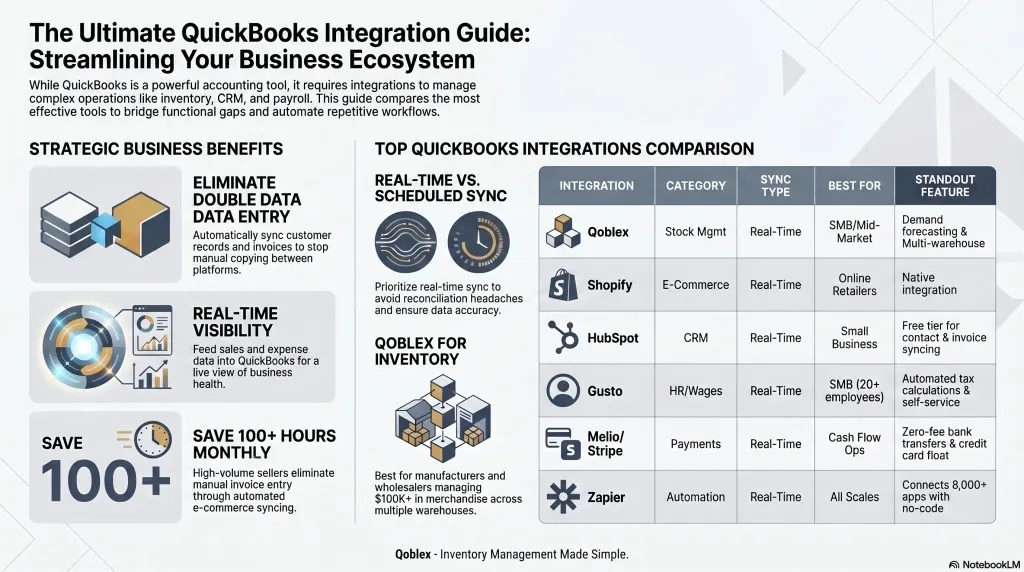
Comparison Table: Top QuickBooks Integrations at a Glance
| Integration | Category | QBO Support | QBD Support | Starting Price | Best For |
|---|---|---|---|---|---|
| Qoblex | Stock Mgmt | Yes | No | Free trial | E-commerce brands, wholesalers, manufacturers |
| SOS Inventory | Stock Mgmt | Yes | No | ~$49/mo | Multi-location tracking, job costing |
| Fishbowl | Stock Mgmt | No | Yes | ~$329/mo | Manufacturing, warehouse management |
| Fathom | Reporting | Yes | Yes | ~$39/mo | KPI tracking, forecasting, advisory firms |
| Spotlight | Reporting | Yes | Yes | ~$33/mo | Visual reports, scenario planning |
| Salesforce | CRM | Yes | No | ~$25/user/mo | Large sales teams, enterprise CRM |
| Shopify | E-Commerce | Yes | No | Included | Online stores, multi-channel retail |
| Synder | E-Commerce | Yes | No | ~$16/mo | Multi-channel e-commerce reconciliation |
| Melio | Payments | Yes | No | Free (fees apply) | Accounts payable, cash flow optimization |
| Gusto | HR/Wages | Yes | No | ~$40/mo + $6/person | Wages, HR, benefits |
| QuickBooks Time | Time Tracking | Yes | Yes | Included (Premium+) | Employee time and GPS tracking |
| Zapier | Automation | Yes | No | Free tier available | Connecting any app to QuickBooks |
How to Set Up a QuickBooks Integration
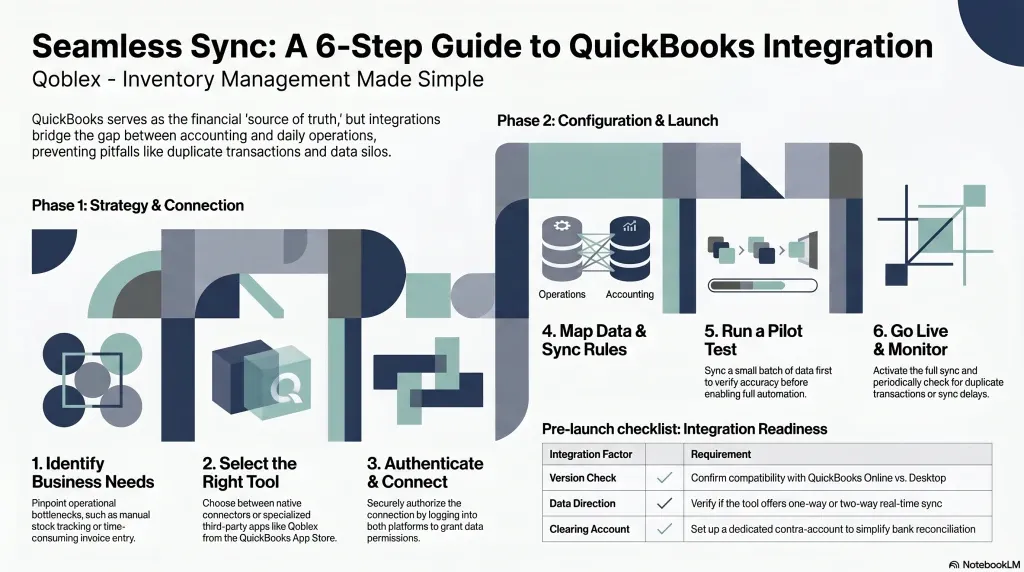
Most integrations follow a similar pattern:
- Find the integration in the QuickBooks App Store (or the new Integrations section under My Integrations).
- Authorize the connection by logging into both platforms and granting access permissions.
- Configure sync settings. Decide what data flows where: which accounts, which transaction types, which direction.
- Map your fields. Match categories, items, and customer records between QuickBooks and the connected app.
- Test with a small batch. Run a few test transactions to confirm data appears correctly in QuickBooks before going live.
Pro tip from accountants: Create a dedicated clearing account (sometimes called a contra account) for each e-commerce or payment integration. Route all transactions from that integration via the clearing account, then reconcile against your bank deposits. This approach makes it easy to spot discrepancies and keeps your general ledger clean.
For native e-commerce connectors (eBay, Amazon, Etsy), QuickBooks lets you configure granular settings: which order statuses to import, how to map SKUs, where to post fees, and which tax rates to apply. Spend 15 minutes getting these right upfront and you’ll avoid hours of cleanup later.
Integration Setup Checklist
Check off each step as you go. Your progress is saved locally.
-
Step 1Verify QuickBooks plan compatibilityCheck whether your QBO or QBD plan supports the integration you want. Native e-commerce connectors need Simple Start or higher.
-
Step 2Find the integration in the QuickBooks App StoreSearch the App Store or the new Integrations section under My Integrations.
-
Step 3Authorize the connectionLog into both platforms and grant the necessary access permissions for data exchange.
-
Step 4Configure sync settingsDecide what data flows where: accounts, transaction types, sync direction (one-way vs. two-way).
-
Step 5Map your fieldsMatch categories, items, and customer records between QuickBooks and the connected app.
-
Step 6Create a dedicated clearing accountRoute integration transactions through a clearing (contra) account for easy reconciliation.
-
Step 7Test with a small batchRun a few test transactions to confirm data appears correctly before going live.
Common Integration Challenges and How to Fix Them
Duplicate transactions. This happens when two integrations touch the same data. For example, if both Shopify and Synder create invoices for the same order, you’ll see duplicates in QuickBooks. The fix: pick one integration per data type and disable overlapping syncs.
Plan limitations. Not every QuickBooks plan supports every integration. The native e-commerce connectors are available on Simple Start, Essentials, Plus, and Advanced plans, but not on the Self-Employed plan. Third-party integrations may have their own plan requirements. Always check before you subscribe.
Sync delays. Some integrations sync in real time; others batch updates once a day. If you require up-to-the-minute data for financial decisions, confirm the sync frequency before committing. Real-time is worth paying extra for.
Currency mismatches. If you sell internationally, make sure your integration handles multi-currency transactions. QuickBooks Online supports multi-currency, but not all integrations pass currency data correctly.
Frequently Asked Questions
Is QuickBooks Desktop going away in 2026?
Not immediately, but Intuit has been steering users toward QuickBooks Online for years. Desktop plans have seen fewer feature updates and some add-ons now only support QBO. If you’re currently on Desktop, it’s worth planning a migration timeline.
Why do some CPAs not like QuickBooks Online?
The main complaints are around audit trails, limited report customization compared to Desktop, and the subscription pricing model. Some CPAs also prefer the granular control Desktop offers for complex tax situations. That said, QBO has closed many of these gaps with recent updates, and most new accounting firms standardize on it.
What are people replacing QuickBooks with?
The most common alternatives are Xero, FreshBooks, and Wave. Xero is popular for its clean interface and unlimited users on every plan. FreshBooks focuses on freelancers and service businesses. Wave is free but limited. For most small businesses with 5+ employees and e-commerce operations, QuickBooks still offers the widest integration ecosystem.
Is QuickBooks being phased out?
QuickBooks as a brand isn’t going anywhere. QuickBooks Desktop’s long-term future is less certain. Intuit’s investments are heavily focused on QuickBooks Online, and the trend across the accounting software industry is cloud-first. Don’t panic, but do keep an eye on Desktop feature announcements.
Conclusion
The right QuickBooks integrations turn a good accounting platform into the operating system for your business. Start by identifying your biggest time sinks. Is it stock tracking? Payment reconciliation? Financial reporting? Pick a couple of integrations that solve your most painful workflow, set them up properly with dedicated clearing accounts, and expand from there.
Don’t try to connect everything at once. Each integration adds complexity, and a clean, well-configured stack of three or four solutions will outperform a messy pile of ten every time.
Best QuickBooks Integrations for 2026