


A reliable connection between Shopify and QuickBooks is essential for keeping your business running smoothly. When orders, customers, taxes, and payments sync automatically, you spend less time on manual bookkeeping and more time growing your business.
But when the integration stops working, even for a short period, the consequences can quickly add up. Missing orders, duplicate invoices, inaccurate inventory, and mismatched financial reports can disrupt daily operations and create hours of manual reconciliation.
The good news is that most synchronization issues are caused by configuration problems rather than software failures. Whether you’re using the native QuickBooks connector or a third-party integration, understanding how the synchronization process works is the first step toward solving the problem.
In this guide, you’ll learn:
- How Shopify and QuickBooks synchronize data
- The most common reasons synchronization fails
- How to troubleshoot sync issues effectively
- Best practices to avoid future problems
- When an inventory management solution becomes a better long-term approach
How Does Shopify Sync with QuickBooks?
This guide is about a sync that is failing. If yours is working as designed and the gap you are hitting is margin rather than errors, see what a Shopify QuickBooks integration moves and what it leaves behind.
Although many merchants think Shopify and QuickBooks communicate directly, most businesses actually rely on an integration app that acts as a bridge between the two platforms.
The typical workflow looks like this:
Shopify → Integration Connector → QuickBooks
When a customer places an order, the connector determines what information should be transferred and when. Depending on its configuration, it may synchronize:
- Orders and invoices
- Customer information
- Products and SKUs
- Taxes
- Payments
- Shipping fees
- Refunds
- Inventory quantities
The connector also maps Shopify data to the correct accounts in QuickBooks. For example, product sales, shipping revenue, discounts, and taxes can all be assigned to different accounting categories.
Because several systems are involved, synchronization problems can occur at multiple points. Authentication may expire, SKUs may no longer match, or another application may modify order data before it reaches QuickBooks.
Understanding this workflow makes troubleshooting much easier, since the issue is often with the connector or its configuration—not with Shopify or QuickBooks themselves.
Common Symptoms of Shopify QuickBooks Sync Issues
Synchronization failures don’t always stop everything immediately. In many cases, they affect only specific types of data, making them difficult to detect.
Some of the most common warning signs include:
- New Shopify orders don’t appear in QuickBooks.
- Inventory quantities differ between systems.
- Duplicate invoices or customers are created.
- Refunds aren’t recorded correctly.
- Tax reports don’t match Shopify sales.
- Synchronization becomes unusually slow or stops completely.
If these issues aren’t addressed quickly, they can lead to inaccurate financial reporting, inventory discrepancies, and unnecessary manual work.
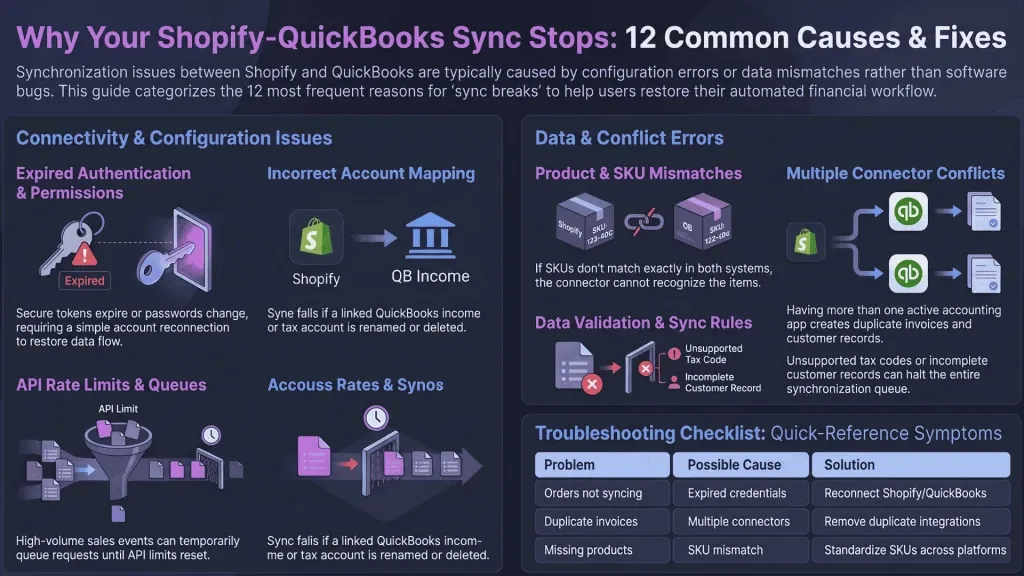
12 Common Reasons Your Shopify QuickBooks Integration Stops Syncing
1. Authentication Has Expired
Shopify and QuickBooks use secure authentication to authorize third-party applications. If permissions expire, passwords change, or access is revoked, the connector can no longer synchronize data.
Common signs
- No new orders appear in QuickBooks.
- Authorization errors appear in the connector.
- The integration asks you to reconnect your accounts.
How to fix it
Reconnect Shopify and QuickBooks, then run a test synchronization to confirm the connection has been restored.
2. Incorrect Account Mapping
Every transaction exported from Shopify must be mapped to the appropriate account in QuickBooks.
If an income, tax, or shipping account has been deleted or renamed, synchronization may fail or post transactions incorrectly.
Common signs
- Orders fail to export.
- Tax amounts are incorrect.
- Revenue appears in the wrong account.
How to fix it
Review your connector’s accounting mappings and ensure every transaction type is linked to an active QuickBooks account.
3. Orders Don’t Meet Synchronization Rules
Many connectors don’t export every order automatically. They may only synchronize orders that are paid, fulfilled, or meet specific criteria.
As a result, some transactions remain in Shopify while others appear correctly in QuickBooks.
Common signs
- Some orders sync successfully while others don’t.
- International or draft orders are missing.
- Only fulfilled orders are exported.
How to fix it
Review your synchronization rules and remove unnecessary filters if they don’t match your business workflow.
4. API Rate Limits
Shopify and QuickBooks limit the number of API requests applications can make over a given period.
During busy sales periods, your connector may temporarily queue synchronization requests instead of processing them immediately.
Common signs
- Sync delays after large sales events.
- Pending synchronization queues.
- Temporary timeout errors.
How to fix it
Allow queued jobs to complete and monitor your connector’s logs before attempting manual imports.
This usually resolves itself once API limits reset.
5. Product or SKU Mismatches
Most Shopify–QuickBooks integrations use SKUs or product IDs to match items between the two platforms. If a product has been renamed, duplicated, or assigned a different SKU, the connector may no longer recognize it.
Common signs
- Products are duplicated in QuickBooks.
- Orders sync without product details.
- Inventory updates fail.
- “Product not found” errors appear.
How to fix it
Ensure every product has a unique SKU and that the same SKU exists in both Shopify and QuickBooks. Avoid changing SKUs after products have been synchronized.
6. Multiple Systems Are Updating Inventory
As businesses grow, inventory is often managed across several platforms, including Shopify, QuickBooks, marketplaces, warehouse software, or third-party logistics providers.
When more than one system updates stock levels independently, inconsistencies become almost inevitable.
Common signs
- Inventory differs between systems.
- Negative stock levels appear.
- Products are oversold.
- Warehouse balances are inaccurate.
How to fix it
Choose one system to act as the single source of truth for inventory and allow the other applications to synchronize with it.
7. Multi-Location Inventory Issues
Shopify supports multiple warehouse locations, but not every QuickBooks connector manages them correctly.
If warehouse mappings are incorrect, stock updates may be assigned to the wrong location or fail entirely.
Common signs
- Only one warehouse updates correctly.
- Stock transfers don’t match reality.
- Inventory differs by location.
How to fix it
Review your warehouse configuration and confirm that your connector fully supports multi-location inventory.
8. Refunds Aren’t Configured Correctly
Refund workflows are more complex than sales transactions because they may include partial refunds, shipping reimbursements, exchanges, or restocking fees.
If refund settings aren’t configured properly, QuickBooks may continue reporting revenue that has already been refunded.
Common signs
- Refunds don’t appear.
- Revenue totals are incorrect.
- Credit notes are missing.
How to fix it
Test several refund scenarios and verify how your connector maps each type of refund.
9. Multiple Connectors Are Installed
Some businesses accidentally leave more than one accounting connector active.
When this happens, both applications try to synchronize the same orders, creating duplicate invoices, payments, or customer records.
Common signs
- Duplicate invoices.
- Duplicate customers.
- Duplicate payments.
How to fix it
Review every app connected to Shopify and QuickBooks and ensure that only one connector handles accounting synchronization.
10. Connector Updates
Integration providers regularly release updates to improve security and compatibility. Occasionally, these updates require new permissions or configuration changes.
Common signs
- Synchronization stopped after an update.
- New authorization requests appear.
- Previously working settings no longer function.
How to fix it
Check your connector’s release notes, reconnect the integration if necessary, and perform a test synchronization.
11. Third-Party App Conflicts
Shipping tools, ERP systems, automation platforms, and inventory applications can all modify Shopify data before it reaches QuickBooks.
If one application changes order information unexpectedly, synchronization may fail.
Common signs
- Random synchronization failures.
- Only certain orders fail.
- Errors started after installing a new app.
How to fix it
Temporarily disable recently installed applications and test the synchronization again to identify the source of the conflict.
12. Data Validation Errors
A single invalid value—such as an unsupported tax code, missing SKU, or incomplete customer record—can prevent an order from syncing successfully.
Some connectors even stop processing the remaining queue until the first error is resolved.
Common signs
- One order repeatedly fails.
- Synchronization stops unexpectedly.
- Error logs reference invalid fields.
How to fix it
Review the connector’s error logs carefully, correct the invalid data, and retry the synchronization.
Shopify QuickBooks Troubleshooting Checklist
Before contacting support, work through this checklist. It helps identify the most common issues in just a few minutes.
| Problem | Possible Cause | Recommended Solution |
| Orders not syncing | Expired authentication | Reconnect Shopify and QuickBooks |
| Inventory mismatch | Multiple inventory sources | Choose one inventory source of truth |
| Duplicate invoices | Multiple connectors | Remove duplicate integrations |
| Refunds missing | Incorrect refund mapping | Review refund configuration |
| Tax discrepancies | Invalid tax mapping | Verify tax accounts |
| Products missing | SKU mismatch | Standardize SKUs across platforms |
| Duplicate customers | Incorrect customer mapping | Review customer matching rules |
| Sync stopped completely | API or permission issue | Reconnect and review sync logs |
Best Practices to Prevent Future Sync Issues
While most synchronization issues can be fixed, preventing them is far more efficient.
Here are a few best practices that can significantly improve the reliability of your integration:
- Maintain consistent SKUs across every system.
- Use only one connector between Shopify and QuickBooks.
- Monitor synchronization logs regularly.
- Keep your integration software updated.
- Test configuration changes before applying them to live data.
- Avoid manual inventory adjustments whenever possible.
- Audit your integrations periodically to identify unused or conflicting applications.
Following these practices can save hours of troubleshooting and reduce accounting errors over time.
When QuickBooks Isn’t Enough for Inventory Management
QuickBooks is an excellent accounting platform, but accounting and inventory management serve different purposes.
QuickBooks helps businesses manage:
- Financial reporting
- Invoicing
- Taxes
- Accounts payable and receivable
However, growing businesses often require additional operational capabilities, such as:
- Multi-warehouse management
- Purchase order management
- Demand forecasting
- Manufacturing workflows
- Batch and lot tracking
- Real-time inventory visibility
- Multichannel inventory synchronization
Managing these operations directly inside accounting software becomes increasingly difficult as order volumes grow.
This is why many businesses continue using QuickBooks for accounting while relying on a dedicated inventory management solution to manage day-to-day operations.
Why Growing Businesses Choose Qoblex
Qoblex complements QuickBooks by becoming the operational hub for inventory management.
Instead of replacing your accounting software, it helps centralize inventory, purchasing, warehousing, manufacturing, and forecasting while keeping financial data synchronized.
With Qoblex, businesses can:
- Manage inventory across multiple sales channels.
- Synchronize stock in real time.
- Track multiple warehouses.
- Create purchase orders.
- Manage Bills of Materials (BOMs).
- Improve replenishment with demand forecasting.
- Integrate seamlessly with Shopify, QuickBooks, WooCommerce, Amazon, Xero, and more.
- Track expiry date and Serial & lot number.
Today, businesses using Qoblex manage more than $3.7 billion in inventory transactions, helping teams simplify operations, improve inventory accuracy, and scale with confidence.
Conclusion
Most Shopify–QuickBooks synchronization issues aren’t caused by bugs—they’re caused by configuration errors, expired permissions, or inconsistent product data.
Before making major changes to your setup, start with the basics:
- Verify that both accounts are properly connected.
- Review your synchronization logs.
- Check your account mappings.
- Confirm that your SKUs match across systems.
- Ensure only one connector is managing the synchronization.
Following a structured troubleshooting process will resolve most issues without requiring technical support.
As your business grows, it’s also important to recognize that accounting software and inventory management software have different roles. QuickBooks is designed to record financial transactions, while inventory management platforms are built to manage purchasing, warehousing, manufacturing, and stock movements.
Using the right tool for each function creates a more reliable and scalable workflow.
If your business is managing multiple warehouses, high order volumes, or multiple sales channels, Qoblex can help centralize your inventory operations while keeping Shopify and QuickBooks synchronized.
Start your 14-day free trial and discover how Qoblex simplifies inventory management for growing businesses.
Frequently Asked Questions
Why is my Shopify not syncing with QuickBooks?
The most common causes include expired authentication, incorrect account mappings, SKU mismatches, synchronization filters, API rate limits, or third-party app conflicts. Reviewing your connector’s synchronization logs is usually the fastest way to identify the issue.
How long should Shopify and QuickBooks synchronization take?
Under normal conditions, synchronization takes only a few seconds or minutes. During busy periods such as Black Friday, delays may occur because connectors need to process a larger volume of API requests.
Why are my Shopify orders missing in QuickBooks?
Many connectors only synchronize orders that meet specific conditions, such as being paid or fulfilled. If some orders are missing, review your synchronization rules before assuming the integration has failed.
Why are duplicate invoices created?
Duplicate invoices usually occur when more than one connector is synchronizing the same transactions or when synchronization jobs are repeated. Ensuring that only one accounting connector is active typically resolves the issue.
Should Shopify or QuickBooks manage inventory?
For businesses with simple operations, either platform may be sufficient. However, companies managing multiple warehouses, suppliers, or sales channels generally benefit from using a dedicated inventory management solution as their single source of truth while QuickBooks focuses on accounting.
Can I use Shopify, QuickBooks, and inventory management software together?
Yes. This is the architecture used by many growing businesses because each platform specializes in a different function.
| Platform | Primary Role |
| Shopify | eCommerce and order management |
| QuickBooks | Accounting and financial reporting |
| Inventory Management Software | Inventory control, purchasing, warehousing, manufacturing, and forecasting |
This approach reduces manual work and improves data accuracy across the business.
How can I prevent synchronization issues?
To reduce the risk of future problems:
- Keep SKUs consistent.
- Monitor synchronization logs regularly.
- Use a single connector.
- Keep integrations up to date.
- Test major configuration changes before deploying them.
- Avoid unnecessary manual inventory adjustments.
Regular maintenance is the best way to keep your integration running smoothly.
Does Qoblex integrate with Shopify and QuickBooks?
Yes. Qoblex integrates seamlessly with Shopify and QuickBooks, allowing businesses to centralize inventory management while keeping financial data synchronized. It also supports multi-warehouse inventory, purchase orders, manufacturing, expiry date, serial & lot number tracking, demand forecasting, and integrations with leading eCommerce and accounting platforms.
Key Takeaways
- Most synchronization issues are caused by configuration rather than software failures.
- Authentication, account mapping, and SKU consistency are the first areas to check.
- Monitoring synchronization logs helps identify problems before they affect financial reporting.
- A dedicated inventory management platform provides better operational control as your business grows.
- Qoblex works alongside Shopify and QuickBooks to simplify inventory operations and support scalable growth.