


This article covers the splitting of inventory adjustments into different Xero ledger accounts.
The Xero Integration setup guide outlines the various steps to follow in order to get going with Xero. It covers the basic default settings such as sales, payment, and purchase ledger account settings. Those default settings can be augmented to sync payments and sales to different accounts depending on tax rates, payment gateways, and so on. The following article outlines the steps to follow to sync your payment data to different Xero accounts.
Add an adjustment sync rule
Follow the steps below to add a payment sync rule to your Xero integration.
- Under Integrations
- Click View Settings under the Xero integration tile
- Under Adjustment accounts section, click Add Adjustment Sync Rule
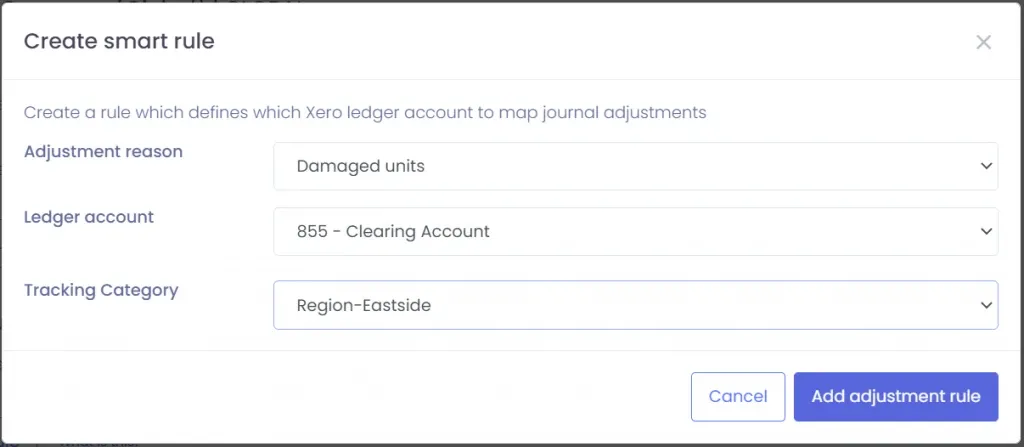
The adjustment rule allows you to sync inventory adjustment data into different ledger accounts and tracking categories depending on the adjustment reason.
In the example screenshot above, “Damaged Units” adjustments will be sent to ledger account 855 in Xero with a “Region-Eastside” tracking category.