



A Black Friday return goes back into sellable stock only when Shopify marks it for restock and Qoblex can trace it to a shipment it already dispatched; Qoblex then adds it back at the mapped location. A damaged return is refunded without restock, so it never re-enters stock. Inspect first, restock only what you can resell, and check the Stock Movement report’s Return Quantity column.
Without that sort, the weekend’s returns come back as a pile of parcels and each item goes back on the shelf as it arrives. By January the count reads a few units higher than the shelf, and nobody can say which return caused it.
Which Black Friday returns can go back into sellable stock?
A returned Black Friday item can go back into sellable stock only if someone has checked it is complete, undamaged and can be sold as new, so the first job with a returns pile is sorting it into resellable and not resellable before anything is recorded in Shopify or Qoblex. Both systems record what the team decides, so the decision has to be right before the record is made.
Even the trend depends on who is counting: Salesforce reported that more than $181 billion of global online purchases made between 1 November and 31 December 2025 “have already been returned”, 14% of all purchases and a 10% increase on the year before, while Adobe Analytics, counting US online sales, reported returns down 1.2% over its 2025 holiday season. Our Black Friday and Cyber Monday statistics piece sets the two side by side. For one small brand its own pile matters more, and the sort first meets a system in Shopify admin.
What does Shopify do when you restock or refund a return?
In Shopify admin you decide for each returned item whether it goes back into inventory: when you refund an order you can restock the items, and when you process a return you can choose a location to restock a return item at. Shopify’s refund help notes that Restock items “is selected by default and is available only when you track inventory for the items included in the order.” That default suits the resellable box, and whoever refunds the damaged box deselects Restock items first. Refunded without restocking, the inventory is left as it is: Shopify’s refund documentation says refunding those items “won’t affect inventory.”
Shopify’s returns help describes how you can “issue refunds after inspecting the returned items”, the bench’s order of work. When the team processes a return, Shopify asks where it goes: “To restock a return item, select Restock at, and then choose a location where you want to restock your return item.” Shopify handles that decision well, and the team should make it there. When the count and the books sit in Qoblex, the next question is what Qoblex does with it.
When does Qoblex add a returned item back to stock?
Qoblex adds a returned Shopify item back to stock at the mapped location only when Shopify marks the line for restock and the line traces to a shipment Qoblex has already dispatched, and it then creates the return, authorizes it and assigns the batches or serials for you. Refunds and returns travel one way, from Shopify to Qoblex, so the decision the team records in Shopify is the one Qoblex follows. A line counts as marked for restock when it reaches Qoblex as a restocked return, or as a refund with restock. A line that was never shipped, such as an order cancelled before fulfillment, does not add stock back.
The units land at the Qoblex location mapped to the Shopify one in the Shopify integration settings, and an unmapped location stops the sync until the team maps it. Disposing or restocking the returned goods in Shopify runs the refund and return sync, and editing the order runs the order update and then the same sync. Creating a refund on its own only re-allocates stock and does not record the accounting refund, and older legacy orders skip that accounting step. The order must already exist in Qoblex, and returns dated before the integration start date are skipped or left untracked so old activity is not counted twice.
What happens to 25 returns from a Black Friday weekend?
When a brand has 25 returned units from the Black Friday weekend, 18 resellable and 7 damaged, the 18 go back into stock through a Qoblex return at the mapped location and the 7 are refunded without restock, so they never re-enter stock. Let’s assume a brand sells one product, a candle, and its Qoblex stock shows 60 on hand after the Black Friday weekend’s orders were dispatched. By the next week 25 candles have come back, and the person who opens the parcels finds 18 sealed and as new and 7 with cracked glass or a crushed lid.
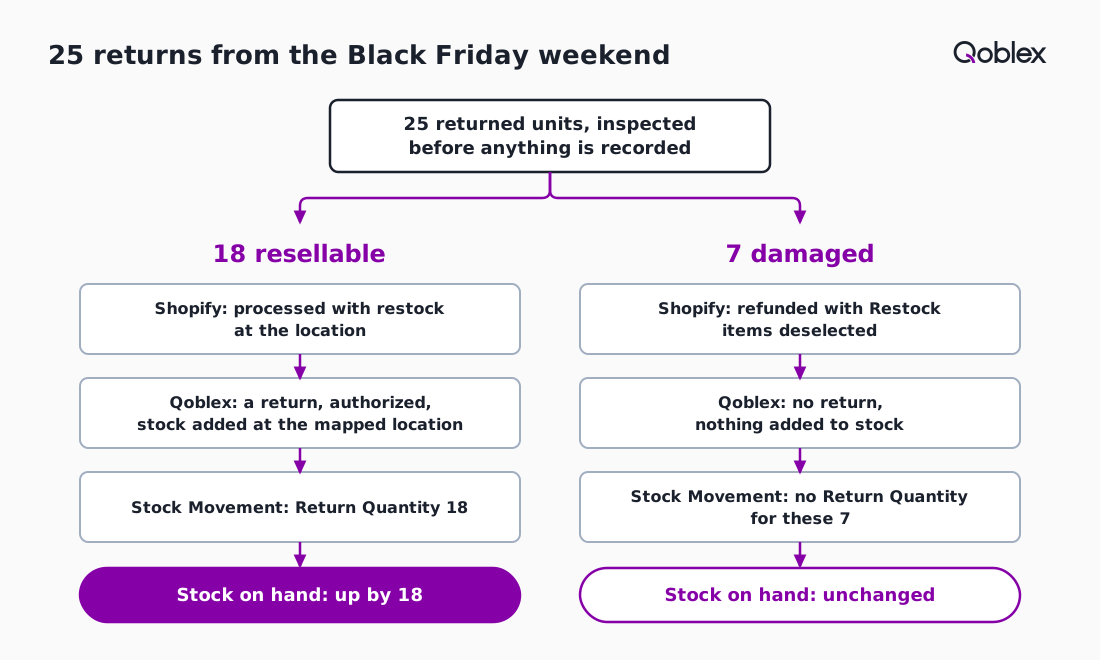
The 18 go through Shopify as a return with restock on. Their lines trace to a shipment Qoblex dispatched, so Qoblex creates a return on the order, authorizes it and adds 18 units at the mapped location. On hand moves from 60 to 78, and the Stock Movement report shows a Return Quantity of 18.
The 7 are refunded in Shopify with Restock items deselected. They left stock when the original order was dispatched, and Qoblex adds stock back only for a line marked for restock, so on hand stays at 78. Qoblex creates its own refund-without-restock adjustment only for lines not linked to a dispatched shipment, and these 7 were dispatched, so that adjustment is not made for them. The warehouse team should count the same 78 on the shelf, and once the sync has run the refund is recorded against the order.
Suppose each candle costs 12. The 18 that go back on the shelf carry 216 of that cost and the 7 damaged ones carry 84, which together make the 300 the 25 returns are worth. The figure Qoblex holds for the stock is the Closing Value in the Stock Movement report, or the Total Cost in the Stock on Hand report. The next section shows where each path appears.
Where does each path show up in Stock Movement and in the books?
The restocked returns show in Qoblex as a return on the order and in the Return Quantity column of the Stock Movement report, while the damaged returns add nothing to stock and show only as the refund recorded against the order.
| What you see | The 18 resellable returns | The 7 damaged returns |
|---|---|---|
| In Shopify | Processed with restock at the location the goods go back to | Refunded with Restock items deselected |
| What Qoblex records | A return on the order, authorized, stock added at the mapped location, batches or serials assigned if the product is tracked | No return, because the line is not marked for restock, and no stock added |
| Stock on hand | Up by 18 | Unchanged |
| On the order screen | The Returned column shows the units once the return is authorized | The refund is recorded against the order |
| In Stock Movement | Return Quantity 18 | No Return Quantity for these 7 |
| In the books | The refund is recorded against the order | The refund is recorded against the order; the refund-without-restock adjustment covers only lines not linked to a dispatched shipment |
| At 12 a unit | 18 x 12 = 216 back on the shelf | 7 x 12 = 84 that does not return to the shelf |
Customer returns sit under Return Quantity, while supplier returns have their own columns, so a candle sent back by a customer is never confused with a carton returned to a supplier.
By default Qoblex posts stock adjustments to the account mapped as the Inventory Adjustments account, unless an override rule sends them elsewhere. In Qoblex’s Xero integration, the Inventory Adjustments account setting asks for “an expense account dedicated to stock loss/shrinkage/write offs”, and in Qoblex’s QuickBooks Online integration the same setting holds stock loss, shrinkage and write-offs. That is why a stock write-off shows as a line of its own in the books. With both paths clear, the weekend comes down to a short routine.
How do you process the weekend’s returns step by step?
A small Shopify brand processes the Black Friday weekend’s returns in seven steps: map the location, sort the pile, restock the resellable units in Shopify, refund the damaged ones without restock, check the return in Qoblex, read Return Quantity in Stock Movement, and compare Closing Balance with the shelf.
- Confirm in the Shopify integration settings that the Shopify location the goods return to is mapped to a Qoblex location.
- Unpack and inspect each returned unit, and sort it into resellable or damaged before opening Shopify.
- Process the return or refund in Shopify for the resellable units with restock on, at the location they go back to.
- Refund the damaged units with Restock items deselected, so they do not go back into inventory.
- Open the order in Qoblex and check that the Returns card lists a return and the Returned column shows the units.
- Open Reporting, then Inventory, then Stock Movement, find the product’s row for that location, and read Return Quantity.
- Compare the Closing Balance with the count on the shelf.
A mapped location keeps the sync moving, and a sorted bench means Shopify only hears decisions already made. Wholesale returns take a route of their own.
How do returns on wholesale orders raised in Qoblex work?
On a wholesale or other sales order raised in Qoblex, the team raises a return from the Return menu on the order, and each shipped line has a Restock checkbox that decides whether the returned units are added back into stock. The dialog groups the lines into Not Shipped items, which are cancelled quantities, and Shipped items, where the person handling the return sets one location for restocked units, then each line’s quantity, Restock checkbox and optional reason. For a damaged return, Restock stays off and the reason reads damaged or defective product.
Create As Draft saves the return for review, and Authorize is the step that changes stock; the order’s Returned column fills in only after that. For a batch or serial tracked product, Qoblex selects the batches or serials that came back when the return is authorized. A refund is a separate document from the same menu and does not move stock. Orders from Shopify get their returns from the sync instead.
When is Shopify’s own restock option enough?
Shopify’s own restock option is enough for a brand whose stock count lives in Shopify alone, because the Restock items choice and the Restock at location already put a resellable return back into the count where the brand keeps it. That covers brands with one location, a few returns, no separate stock system and no inventory in the books to reconcile, and Shopify does the whole job well.
The picture changes once the count and the books sit in Qoblex and an accounting platform such as Xero or QuickBooks Online: the sync rules above decide what comes back into stock, and Stock Movement explains the returns at January’s count.
Frequently asked questions
Does a Shopify refund always put the item back into Qoblex stock?
No. Qoblex adds a refunded item back to stock only when Shopify marks the line for restock and the line traces to a shipment Qoblex already dispatched. A line that was never shipped does not add stock back, and a damaged return refunded without restock is not marked for restock, so it is not added back.
Why did a returned item not come back into stock in Qoblex?
Check four things: Shopify marked the line for restock, the line traces to a dispatched shipment, the Shopify location is mapped to a Qoblex location, and the return is dated after the integration start date. An unmapped location stops the sync, and the order must already exist in Qoblex.
Why does a refund I created in Shopify not show in Qoblex?
Creating a refund in Shopify on its own only re-allocates stock in Qoblex and does not record the accounting refund. Editing the order in Shopify, or disposing or restocking the returned goods, runs the sync that brings the refund in. The order must also already exist in Qoblex.
What is the Shopify refund without restock adjustment?
The Shopify refund without restock adjustment is a stock adjustment Qoblex creates and authorizes itself, with that reason and a number like sale#1042-R#987654321. It runs only for a refund without restock on a line not linked to a dispatched shipment, and it removes the refunded quantity from Qoblex stock.
What if damaged units were already restocked?
Create a stock adjustment at their location with the reason Damaged Goods or Write-Off, review it as a Draft, then Authorize it; an authorized adjustment is locked. In Xero or QuickBooks Online, stock adjustments post by default to the account set as the Inventory Adjustments account, and the adjustment total stays an estimate until authorized.
Where do I see returned units in Qoblex?
On the order, the Returns card lists the return and the Returned column shows the units once the return is authorized. In Reporting, Inventory, Stock Movement, customer returns appear under Return Quantity, and supplier returns have their own columns, so the two are never mixed up.