



At a glance: A beverage maker and distributor sells blended tea and coffee, spirits and soft drinks wholesale through regional distribution agents. It imports raw materials, blends and packs in-house, and keeps its books in Xero. Its stock sat in a plant and several warehouses at agent depots with no system, so nobody was sure what was where. In Qoblex each warehouse is a location with its own count, stock transfers carry batch numbers between them, and Xero keeps one inventory value.
What happens when a beverage maker’s stock sits in a blending plant and several agent depots with no system?
Each site knows its own shelves and nobody knows the whole. A business of this shape imports raw materials, blends and packs them at its own plant, then ships cartons to the depots its regional agents supply customers from.
That worked without a system for a good reason: with one site, the shelf is the system. The habit carried on as depots were added, and the question “how many cartons of the breakfast blend do we have, and where?” started to be answered by phoning around. Pallets left the plant on a note. When a depot’s count came up short, the gap was sometimes covered by “sending” more on paper, so a counting error turned into a movement that never happened.
Xero held the value of the stock, which was its job. Where the stock physically sat was in people’s heads.
The questions below are the ones a business like this asks to check how its own week would run in Qoblex.
Can I track inventory levels separately in each warehouse across a national distribution network?
Yes. In Qoblex each warehouse is its own location, and every product variant carries a separate count for each location. The depots are locations, and so is the blending and packing plant.
Let’s assume the business has about 15 finished products and four locations: a blending and packing plant and three agent depots.
On each variant, the Inventory tab shows a location table with one row per location set up to hold stock. Each row has In stock, Buffer (held back from sale there), Incoming and Max inventory. What can be promised is worked out per location: Available is In stock minus what is allocated to sales orders minus the buffer.
To compare one product across all four sites at once, the Stock on Hand report adds a grouped column block per location, with that location’s quantity, allocated, available, incoming, buffer and alert level. For setting up the locations themselves, see multi-location inventory management.
Four locations is more than the Starter plan allows, so this business sits on Business or Scale (the plan answer is in the FAQ).
How do I see where everything is at any moment when stock moves between sites often?
Read the per-location view and the movement trail. The Stock on Hand report shows what each location holds, has allocated and has available, side by side. The Stock Movement report shows the trail behind those figures: each row covers one product at one location for one movement, and with a date range applied it gives opening and closing figures for the period.
Pallets moving between sites live in the Transfers list. It opens on Draft transfers by default; open the filters and include Received to see completed ones.
The status tells you what the counts mean. A Draft transfer has not moved any stock yet, so the cartons are still counted at the sending location. A Received transfer has moved them.
How do I move stock from the blending plant to an agent depot?
With a stock transfer: pick the Transfer from location and Receiving location, add the lines, Save it as a draft, and choose Receive when the stock has arrived. Receive is the step that moves the stock. For the screen-by-screen basics, see how to transfer inventory across locations.
The steps:
- Open Transfers and create a transfer. Choose Transfer from location (the plant) and Receiving location (Depot A). Use Assigned to for the person it belongs to, such as the depot lead.
- Add the lines with Add new line (search in “Enter product name or SKU”) or Scan new line (by barcode), and set the Quantity to transfer on each.
- Read the draft table: Source, Destination, Quantity, Source after and Destination after. Save keeps it as a draft, and Print (available once it is saved) gives the loading dock and the depot a sheet.
- Keep it a draft until the pallet has physically arrived and the receiving team is ready. Draft transfers do not move stock.
- Choose Receive. That is the inventory-changing step, and the status becomes Received.
Now the example. Let’s assume the plant and the three depots hold these cartons at the start of the week. Three of the 15 products are shown; the other twelve sit in the same table.
| Product (carton) | Plant | Depot A | Depot B | Depot C | All locations |
|---|---|---|---|---|---|
| Breakfast tea, 12 boxes | 400 | 60 | 120 | 90 | 670 |
| Whole bean coffee, 10 x 1 kg | 250 | 40 | 80 | 30 | 400 |
| Ginger soft drink, case of 24 | 600 | 100 | 200 | 150 | 1,050 |
- Monday 9:00. Depot A is running low. The team drafts a transfer from the plant to Depot A: 50 cartons of breakfast tea and 20 of coffee, saved as a draft and printed for the loading dock. The draft table shows the effect before anything posts:
| Product (carton) | Source | Destination | Quantity | Source after | Destination after |
|---|---|---|---|---|---|
| Breakfast tea, 12 boxes | 400 | 60 | 50 | 350 | 110 |
| Whole bean coffee, 10 x 1 kg | 250 | 40 | 20 | 230 | 60 |
- Tuesday 7:00 to Thursday 11:00. The pallet is on the road. The counts in Qoblex are unchanged, because the transfer is still a Draft.
- Thursday 11:15. The depot confirms the pallet is in, and the team chooses Receive. Tea and coffee are batch-tracked, so the batch assignment dialog opens first (next question). Once it is accepted, the status is Received and the counts move.
After Thursday 11:15, the stock-by-location view shows:
| Product (carton) | Plant | Depot A | Depot B | Depot C | All locations |
|---|---|---|---|---|---|
| Breakfast tea, 12 boxes | 350 | 110 | 120 | 90 | 670 |
| Whole bean coffee, 10 x 1 kg | 230 | 60 | 80 | 30 | 400 |
| Ginger soft drink, case of 24 | 600 | 100 | 200 | 150 | 1,050 |
The total for each product is the same before and after. Only where it sits has changed.
Does the batch number travel with the stock when it moves to a depot?
Yes, for batch-tracked products. On Receive, if any line is batch-tracked or serial-tracked, Qoblex opens the batch assignment dialog before the transfer posts. For a batch-tracked line you enter one row per batch, and the batch quantities must add up exactly to the line quantity.
In the example, the 50 cartons of breakfast tea came from two batches: TB-1041 for 30 cartons and TB-1042 for 20. The 20 cartons of coffee are one batch, CF-2207.
If Depot A does not already hold those batches, Qoblex can create the destination batch during the receive, so traceability continues at the new location. The expiry date, when one exists, travels with the batch.
Afterwards, check the Batches page or the variant’s Batches / Serials tab: TB-1041, TB-1042 and CF-2207 are down at the plant and up at Depot A by the quantities moved.
If the dialog is cancelled or left incomplete, Qoblex stops the receive. A transfer is never posted with missing batch details.
How do I manage stock across multiple warehouses with Xero?
In Qoblex, each warehouse is its own location with its own count, a stock transfer moves quantities between locations when it is received, and Qoblex sends products to Xero as untracked items and posts the value of stock movements as journals to Stock On Hand and Cost Of Goods Sold, so Xero carries one inventory value and the per-location quantities live in Qoblex.
Xero is the books and stays the books. In practice:
- Qoblex sends products to Xero as untracked items. In Xero, the I track this item box is not ticked for products Qoblex manages.
- Qoblex works out the value of each stock movement and posts it to Xero as journals against the Stock On Hand and Cost Of Goods Sold accounts. Xero is the set of books; Qoblex is the inventory system, and the counts per location live there.
- Products Qoblex creates arrive in Xero untracked. Items that already exist in Xero need a check first (see the FAQ).
- Qoblex posts invoices and bills to Xero, with optional Two way payment sync for payments.
- The Xero integration is a paid add-on on the Starter and Business plans.
The full Xero integration is described on its own page.
Can my accountant see sales and cost by depot in Xero?
Yes, with override rules in Qoblex’s Xero settings, which are best set up with the bookkeeper or finance owner. An override rule can set a different ledger account, stamp a Xero tracking category, or both. Sales rules match on Sales location, COGS (Cost of Goods Sold) rules match on Location, and inventory adjustment rules match on Adjustment location.
So one rule can send Depot B’s sales to its own sales account, and another can stamp a Depot B tracking category on its cost of goods sold.
Rules apply to future syncs only, and Qoblex evaluates them in priority order, so the first match wins. A rule handles an exception; the section’s default account stays the fallback for everything else.
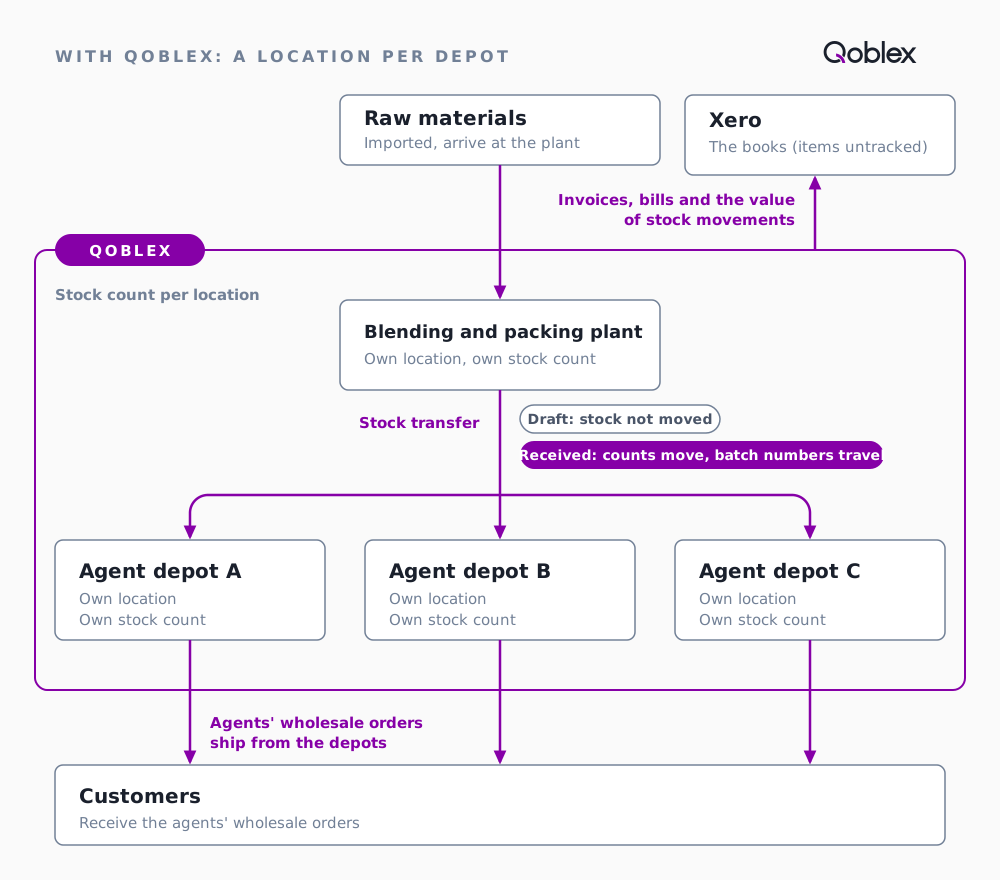
That is the flow the answers add up to. Whether it fits depends on where your stock sits.
Does this fit your business?
Wine and spirits trader with stock in several countries that moves between them often. Same mechanics: each warehouse is a location, a transfer moves stock between them, and batch numbers travel on Receive.
Coffee roaster, tea blender, spice or ingredient blender that packs in-house and supplies agent or wholesale depots. Same shape: the plant is a location, and finished goods move to the depots by transfer.
Craft brewer with taprooms and a production site. Each taproom is a location, and transfers move kegs and cases from the production site to it as product quantities.
Any food distributor holding agent stock in several warehouses. The same, with the traceability add-on if lots matter.
For the product view of running several locations, see inventory management software for multi-warehouse companies.
Who it does not fit, and when Xero is enough. A business with a single warehouse and a modest number of finished products. Xero’s own tracked inventory is a good fit there: in Xero’s words, “Xero’s tracked inventory is designed for finished goods.” And it lets you “Look up the quantity of items on hand and available to sell”. The same goes for a business that never moves stock between places, or does not blend, pack or batch anything: stay with Xero and skip a second system. This page matters once stock sits in several places, moves between them and carries batches. For the longer version, see Xero inventory management.
Frequently asked questions
How many warehouse locations can I have, and what do four locations need?
The Starter plan caps at 2 warehouse locations and 2 users. A blending plant plus three agent depots is four locations, so a business of that shape needs the Business or Scale plan. For what each plan includes, see the pricing page.
What if the count at one depot is wrong?
Use a stock adjustment at that depot, never a transfer. A transfer is for real movement between two locations; covering a count error with one records a movement that never happened. If the accountant wants adjustments posted per depot, inventory adjustment rules in the Xero settings can route them by Adjustment location.
What does Qoblex show while the pallet is on the road?
Until someone chooses Receive, the transfer is a Draft, and the stock is still counted at the source location. Receive is the inventory-changing step. Keep the transfer as a draft until the pallet has arrived and the receiving team is ready, then receive it.
Can I change a transfer after I have received it?
No. A received transfer is posted inventory history and is not edited. Create a correcting movement that matches what actually happened: a transfer back if stock went to the wrong place, another transfer for any quantity that moved but was not recorded, and for an overstated quantity, a transfer back or a stock adjustment at the depot once the physical count is confirmed. A draft transfer, by contrast, can still be edited or deleted before it is received.
Do my products have to be untracked in Xero?
Yes, for the products Qoblex manages. Qoblex sends them to Xero as untracked items and posts the value of stock movements itself, so do not tick “I track this item” for them, or Xero calculates that value a second time. Items that already exist in Xero as tracked should be untracked, with your accountant, before you rely on the sync. Items Qoblex does not manage can stay as they are.
Is batch tracking included on every plan?
No. Lot, batch, serial and expiry traceability is a paid add-on on the Starter and Business plans and is included on Scale. With it, batch numbers and expiry dates move with the stock on Receive. See batch tracking for how traceability works in Qoblex.
Is the Xero connection included on every plan?
No. Integrations, including Xero, are a paid add-on on the Starter and Business plans. The connection is what posts invoices, bills and the value of stock movements to Xero, with optional Two way payment sync for payments. Compare plans on the pricing page.
Can I scan products instead of typing them into a transfer?
Yes. On a transfer, Scan new line adds each scanned product by barcode, with the scanned quantity. Add new line adds a blank line where you search in “Enter product name or SKU”, and Qoblex fills the product and recalculates the source and destination figures. Both work on the same draft.
When is Xero’s own inventory enough?
When you hold finished goods in one warehouse and do not move stock between sites. In that case Xero’s own tracked inventory is a good fit, because “Xero’s tracked inventory is designed for finished goods.” Stay with it. A separate inventory system earns its place once stock sits in several warehouses and batches have to follow it. See Xero inventory management.