



A guide written from the point of view of an operator who runs the books on QuickBooks Online and keeps hitting the edge of what its inventory can do.
QuickBooks Online tracks inventory on its Plus and Advanced plans: quantity on hand, FIFO cost valuation, reorder-point alerts, and basic purchase orders. What it does not include natively is lot and batch number tracking, expiry date management, serial number tracing, multi-warehouse or bin-level stock, and bill-of-materials or manufacturing workflows. For teams that need those capabilities, a dedicated inventory app runs alongside QBO while QBO stays the accounting system of record.
You run your books on QuickBooks Online. You sell physical products, and for a good while QBO’s inventory did the job: you added your items, quantity on hand went up when you received a purchase order and down when you raised an invoice, and your cost of goods sold looked right at month-end. Then something changed. A customer asked which batch their order shipped from. A second stockroom filled up and the on-hand number stopped matching what was actually on the shelf. You started building product from components and there was nowhere to record the recipe. You opened QBO to sort it out, and the field you needed simply was not there.
That is not a setup mistake. QuickBooks Online was built to be your accounting system, and it is a good one. Its inventory is real, but it is deliberately scoped for the books: item tracking and costing for the general ledger, not an operations layer for the warehouse or the production floor. This page names exactly what QBO’s inventory does and does not do, is careful about the difference between QuickBooks Online and QuickBooks Desktop, and shows how to add the missing operational depth while QBO stays your book of record.
What does QuickBooks Online inventory management actually do?
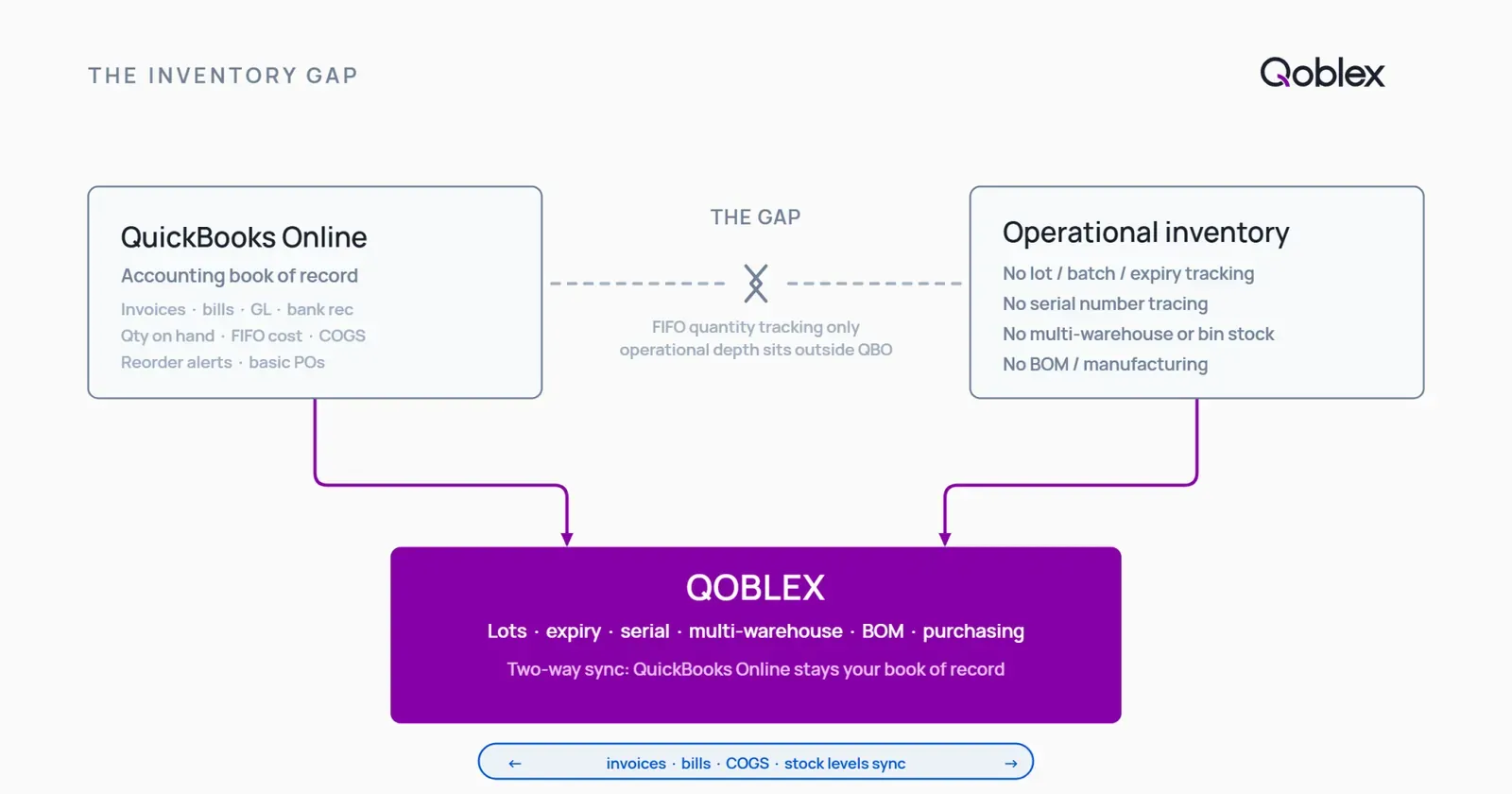
QuickBooks Online does have inventory management built in. The question worth answering precisely is what that built-in inventory covers, because the gap only makes sense once the starting point is clear.
Which QuickBooks Online plans include inventory tracking
Inventory tracking in QBO is not on every plan. Per Intuit’s own plan lineup, it is available on the Plus and Advanced plans only; Simple Start and Essentials do not include inventory tracking. So the first practical question is not “how do I track lots” but “am I on a plan that tracks inventory at all.” If you are on Simple Start or Essentials and you sell stock, you either move up to Plus or you run inventory somewhere else.
What QBO inventory tracking covers natively
Once you are on Plus or Advanced, QBO keeps a perpetual quantity on hand for each inventory item, moving the number automatically as you raise sales and record purchases. It supports reorder-point reminders that alert you when quantity on hand drops to or below a threshold you set. It also lets you create purchase orders manually, though it is worth knowing that hitting a reorder point does not raise a PO for you: QBO flags the low stock, and a person still creates the order. For general ledger, bank reconciliation, invoicing, bill payment, tax, and reporting, QBO is a capable system of record. None of that is the gap.
How QBO handles inventory costing (FIFO)
QuickBooks Online values inventory using FIFO, first in, first out, as its costing method. When you sell an item, the cost of your oldest purchased units is what posts to COGS. FIFO is the default, and QBO also offers Moving Average Cost, but the choice has to be made in settings before your first inventory item exists and cannot be changed later. There is no LIFO option. For a lot of businesses this is exactly right, and the costing side of QBO inventory is not where people run into trouble. The trouble starts one layer down, in the physical operations the accounting number does not describe.
What QuickBooks Online inventory management doesn’t do natively
QBO’s inventory is item tracking and costing for the books. The operational layer, the part that runs the warehouse and the production floor, is a different job. Here is what QBO does not do natively. A note that runs through this whole section: several of these capabilities do exist in QuickBooks Desktop Enterprise, which is a separate product. Where that is the case, it is called out, because a reader weighing QuickBooks Online against QuickBooks Desktop should not be misled by omission.
No lot numbers, batch codes, or expiry dates
QuickBooks Online has no native lot or batch number tracking; businesses that need to trace product batches have to use a third-party integration. It also does not track expiry or best-before dates. Expiry date tracking is a QuickBooks Desktop Enterprise feature (introduced across editions in the 2023 and 2024 releases) and is explicitly not available in QuickBooks Online; it also depends on lot or serial assignment first, which QBO does not have either. If you sell food, supplements, cosmetics, or anything with a batch identity or a shelf life, there is nowhere in QBO to record which lot a unit belongs to or when it expires. If this is the wall you have hit, our overview of advanced lot and batch number tracking for visibility and compliance walks through what proper lot control involves.
No serial number tracking
QBO does not support true serial number tracking; you can type a serial number into a description field, but it functions as an invoice reference, not as a traced unique identifier. In other words, there is no way to know which specific serialized unit went to which customer, or to search by serial across your stock. Genuine serial tracing, like lot and expiry tracking, lives in QuickBooks Desktop Enterprise with the Advanced Inventory add-on, not in QBO.
No multi-warehouse or bin-level stock tracking
QuickBooks Online has a “location” feature, but it is easy to mistake it for warehouse tracking, and it is not. QBO locations categorize transactions by location for financial reporting; they do not track item quantities per warehouse or bin, so QBO cannot answer “how many units are in Warehouse A”. True multi-location inventory with bin-level stock is, again, a QuickBooks Desktop Enterprise capability (via Advanced Inventory), not a QBO one. If you hold stock in more than one place, QBO gives you one pooled number, not a per-location view.
No bill of materials, assemblies, or manufacturing workflows
If you build or assemble what you sell, QuickBooks Online has no bill of materials, no assembly feature, and no production workflow. Single-level inventory assemblies exist in QuickBooks Desktop (Pro and Premier), and multi-level BOM with advanced manufacturing tooling lives in QuickBooks Desktop Enterprise, but none of that is in QBO. There is no way to define a product’s components, deduct those components when you build a finished good, or track a production run.
No barcode scanning or mobile picking
QuickBooks Online has no barcode generation, no scanner input, and no mobile pick-and-pack workflow. Intuit’s own guide to setting up and tracking inventory in QuickBooks Online does not mention barcodes anywhere (Intuit, Set up and track your inventory in QuickBooks Online, checked 12 October 2026). Barcode scanning appears in the QuickBooks family only in Desktop Enterprise, covered in the next section.
In practice that means your pickers work from a printed list or a phone screen, and someone types the result back into QBO by hand. For a handful of orders a day that is fine. Once you are picking dozens of lines, every manual re-entry is a place where the on-hand number quietly drifts away from what is actually on the shelf, and the month-end count is where you find out.
No demand forecasting, and reorder points are fixed numbers you set
QBO will tell you when an item falls below a threshold. It will not work out what that threshold should be. Intuit describes the behaviour plainly: “If you set a low-stock alert, QuickBooks will also let you know when something’s running low” (Intuit, checked 12 October 2026).
The number is one you typed in, and it stays where you typed it. It does not move with your sales rate, your supplier lead time, or your season. A reorder point that was right in February is wrong by November, and nothing in QBO tells you it has gone stale. Teams usually discover this twice: once when they stock out on a line that was selling faster than the threshold assumed, and once when cash is tied up in a line that was selling slower.
QBO native vs Qoblex + QBO: the capability gap at a glance
| Capability | QuickBooks Online (native) | Qoblex + QuickBooks Online |
|---|---|---|
| Quantity on hand / stock tracking | Yes, on Plus and Advanced only | Yes, syncs to QBO |
| Inventory costing method | FIFO (default) or Moving Average Cost, chosen once; no LIFO | Physical layer in Qoblex; costing stays in QBO |
| Reorder point alerts | Yes, but manual: it flags low stock, it does not auto-create a PO | Yes |
| Purchase orders | Basic manual creation; no lot-level receiving, no 3-way check | Yes, with multi-GRN and 3-way matching (qoblex.com/purchase-orders) |
| Lot / batch number tracking | No in QBO; available in QB Desktop Enterprise with Advanced Inventory | Yes, a paid add-on (qoblex.com/lot-tracking) |
| Expiry / best-before tracking | No in QBO; available in QB Desktop Enterprise | Yes, a paid add-on (qoblex.com/lot-tracking) |
| Serial number tracking | No true tracing in QBO; description-field text only | Yes, a paid add-on (qoblex.com/lot-tracking) |
| FEFO picking enforcement | No | Yes |
| Multi-warehouse / bin-level stock | No in QBO; location is a transaction category, not quantity-by-location; available in QB Desktop Enterprise | Yes (qoblex.com/warehouse-management) |
| BOM / assemblies / manufacturing | No in QBO; basic assemblies in QB Desktop Pro/Premier, advanced BOM in QB Desktop Enterprise | Yes (qoblex.com/manufacturing) |
| Accounting / GL / invoicing / COGS | Yes, system of record | Stays in QBO: sales orders sync as invoices, POs as bills, returns as credit notes, COGS auto-adjusted on fulfilment |
QuickBooks Advanced Inventory: what Desktop Enterprise adds
If you have searched for lot tracking or barcode scanning in QuickBooks and landed on pages saying QuickBooks supports them, those pages are usually describing a different product. Serial numbers, lot numbers with expiration dates, multiple warehouse locations, and barcode scanning are features of Advanced Inventory, which belongs to QuickBooks Desktop Enterprise rather than to QuickBooks Online. Intuit draws the line itself: “Advanced Inventory is included in the Platinum and Diamond subscriptions only” (Intuit, QuickBooks Desktop Enterprise Advanced Inventory, checked 12 October 2026).
This is worth being precise about, because it is the single most common source of confusion for operators researching this problem. No QuickBooks Online plan gains these capabilities at any price. Moving to them means moving to a different product, on a different deployment model, with a different data migration.
| Capability | QuickBooks Online (any plan) | Desktop Enterprise, Advanced Inventory |
|---|---|---|
| Serial number tracking | No | Yes, Platinum and Diamond only |
| Lot numbers with expiration dates | No | Yes, Platinum and Diamond only |
| Multiple warehouse locations | No | Yes, Platinum and Diamond only |
| Barcode scanning | No | Yes, Platinum and Diamond only |
| Deployment | Cloud | Desktop and on-premise |
Source for the Enterprise column: Intuit, Advanced Inventory, checked 12 October 2026.
So there are genuinely three paths, not two: stay on QBO and accept the limits, move to Desktop Enterprise and accept a desktop deployment, or keep QBO as your book of record and run a dedicated cloud inventory layer alongside it. Which one is right depends far more on whether you want to stay in the cloud than on any feature checklist, and we come back to that question at the end of this guide.
Can QuickBooks Online add lot, batch, and expiry tracking?
This is the gap most QBO users hit first, so it is worth being direct about it. QuickBooks Online does not track lot or batch numbers, and it does not track expiry dates. There is no field for a lot, no field for a best-before date, and no picking rule that sends the soonest-to-expire stock out first.
The workarounds people reach for, typing a lot and expiry into an item description, keeping a parallel spreadsheet, or creating a separate inventory item for every batch, all work for a while and then break under pressure. The moment a supplier flags a bad batch and you need to know which customers received it, free text and side spreadsheets cannot answer the question quickly or reliably.
We cover this specific gap in depth on a dedicated page: the workarounds, why they break, what proper lot and expiry tracking requires, how first-expiry-first-out (FEFO) picking works alongside QBO’s FIFO costing, and how to add it. If lot, batch, or expiry tracking is your main reason for reading this, go straight to batch and expiry tracking for QuickBooks Online users for the full treatment.
What is the best inventory management software for QuickBooks Online?
Because QBO deliberately keeps inventory scoped to the books, there is a healthy market of dedicated apps that add the operational layer. The right one depends on which gaps you actually need to close.
What to look for in a QBO inventory add-on
Start from your gap, not the feature list. Ask which of these you need now, and which you will need within the next year or two: lot, batch, serial, and expiry tracking with FEFO picking; multi-warehouse and bin-level stock; purchase-order depth (lot-level receiving and a three-way check between PO, goods received, and bill); a bill of materials and production orders; and clean, two-way sync with QBO so your accounting stays in one place. Then look for an app that closes those specific gaps. Options such as Fishbowl, inFlow, and Katana each serve a different segment of this need; the fit depends on your product type and scale. If your accounting system is Xero rather than QuickBooks Online, see how Xero handles inventory natively for the same gap map applied to that platform.
How Qoblex and QBO work together
Qoblex is the operations layer that sits on top of QuickBooks Online. It does not replace QBO. QuickBooks Online stays your accounting book of record, general ledger, bank reconciliation, tax, and invoicing, and Qoblex handles the inventory and traceability work QBO was never built for while QBO remains the accounting system of record. On the operations side, Qoblex adds:
- Lot, batch, serial, and expiry tracking with FEFO allocation, available as a paid add-on rather than part of the base plan; see current pricing.
- Multi-warehouse inventory with bin-level stock and transfers between locations.
- Bills of materials and manufacturing workflows: production orders and raw-material-to-finished-goods tracking.
- Purchase orders with multi-GRN receiving and a three-way match between PO, goods received, and bill.
The Qoblex and QBO sync in plain terms
The two systems sync so neither team re-enters transactions by hand. QBO keeps all of the accounting. Qoblex handles the operations: stock per lot per location, FEFO picking, purchase orders, production, and fulfilment. When a sale is fulfilled in Qoblex, the transaction flows to QBO: sales orders sync as invoices, purchase orders sync as bills, returns sync as credit notes, and COGS is auto-adjusted on fulfilment. Your accountant never leaves QuickBooks Online; your warehouse team never loses traceability. That is the point of adding a layer instead of switching systems.
When is QuickBooks Online’s built-in inventory enough?
Adding an operations layer is not the right move for everyone. QBO’s built-in inventory is genuinely enough in several situations, and it is worth knowing where that line sits before you spend on anything.
Simple product sellers with no lot, expiry, or serial requirement
If you sell non-perishable, non-regulated products with no batch identity, standard hardware, merchandise, stationery, from a single location, QBO’s tracked inventory on Plus or Advanced covers quantity and FIFO costing well. You have no FEFO obligation, no recall risk tied to lot numbers, and no serial-tracing requirement. There is no reason to add a platform.
Very small operations where QBO’s reorder alerts and FIFO costing are sufficient
A small operation, one or two people who both touch every shipment and a handful of SKUs, may find that QBO’s quantity on hand, reorder-point alerts, and FIFO costing tell them everything they need. Spreadsheets alongside QBO are how a lot of good businesses started, and there is no need to add software before the workflow actually strains. When a third person joins the warehouse, or a second location or a production process appears, that is the signal to add a proper layer.
When QuickBooks Desktop Enterprise is the right answer instead
There is also a QuickBooks-native path worth naming honestly. As set out earlier in this guide, lot and serial tracking, expiry dates, barcode scanning, and multi-warehouse stock do exist in QuickBooks Desktop Enterprise with Advanced Inventory on its Platinum and Diamond subscriptions. If you are committed to a desktop, on-premise QuickBooks deployment and those features cover your needs, Enterprise may be the right answer for you. It is a different product with a different model from QuickBooks Online, so the choice comes down to whether you want a cloud accounting system with a dedicated cloud operations layer on top, or a heavier desktop product that carries more inventory features itself. Knowing which stage and which deployment you are at is more useful than any feature checklist.
FAQ
Does QuickBooks Online have native inventory management?
Yes. QuickBooks Online includes inventory tracking on its Plus and Advanced plans: quantity on hand with FIFO cost valuation, reorder-point alerts (manual, not auto-PO), and basic purchase order creation. Simple Start and Essentials plans do not include inventory tracking. What QBO does not include in any plan is lot or batch tracking, expiry dates, serial number tracing, multi-warehouse bin-level stock, or bill-of-materials and manufacturing workflows.
What does QuickBooks Online inventory management not include natively?
QuickBooks Online has no native lot number or batch code tracking, no expiry or best-before date fields, and no true serial number tracing (manual entry in a description field is not lot-level assignment). It does not support multi-warehouse or bin-level quantity tracking: the QBO location feature categorizes transactions, not item quantities per warehouse. It has no bill of materials, assembly workflows, or manufacturing production orders. Those capabilities exist in QuickBooks Desktop Enterprise with the Advanced Inventory add-on, not in QBO.
Does QuickBooks Online use FIFO or average cost for inventory?
QuickBooks Online supports both. FIFO (first in, first out) is the default, and Moving Average Cost is the alternative; you have to choose in settings before you create your first inventory item, and the choice cannot be changed afterwards. Create an item without choosing and QBO locks you into FIFO, with the option gone from your settings. QBO does not support LIFO. Inventory tracking is available on the Plus and Advanced plans only; Simple Start and Essentials do not include inventory tracking.
What is the best inventory management software for QuickBooks Online?
The right option depends on which gaps you need to close. For businesses that need lot, batch, serial, and expiry tracking, multi-warehouse management, BOM and production workflows, and multi-GRN purchasing alongside QBO accounting, Qoblex provides a native QuickBooks Online integration: sales orders sync as invoices, purchase orders sync as bills, returns sync as credit notes, and COGS is auto-adjusted on fulfilment, all while QBO remains the accounting book of record. Other options such as Fishbowl, inFlow, and Katana serve different segments of this need.
Does Qoblex replace QuickBooks Online?
No. Qoblex is the operations and inventory layer; QuickBooks Online stays the accounting system of record for general ledger, bank reconciliation, invoicing, and tax. Sales orders in Qoblex sync to QBO as invoices; purchase orders sync as bills; returns sync as credit notes; COGS is auto-adjusted on fulfilment. Neither team re-enters transactions manually.
When is QuickBooks Online’s built-in inventory enough?
QBO’s native inventory is enough when you sell non-perishable, non-lot-controlled products from a single location, have no manufacturing or assembly requirement, and FIFO quantity-on-hand tracking with reorder-point alerts tells you everything you need. The moment you need to trace batches, manage expiry dates, pick from multiple warehouses, run production orders, or trace serial numbers, you need a dedicated operations layer alongside QBO.