


At a glance: An audio-visual equipment distributor imports professional hardware from overseas suppliers in several currencies, sells it singly and as locally assembled kits, takes almost every order by email from trade buyers and keeps its books in Xero. After launching a Shopify store, it kept its wholesale-only range off the store by switching off Push new products in Qoblex. Trade orders and Shopify orders now draw on one stock, and invoices post to Xero.
What happens when an audio-visual distributor that sells to trade by email opens a Shopify store?
An audio-visual equipment distributor that had always taken trade orders by email worried, when it opened a Shopify store, that every product it added to its catalogue would appear on the retail site, because most of what it imported was sold to trade buyers only. The business brought in professional hardware from overseas suppliers, had some components made locally and sold its units singly and as kits it assembled itself. Email ordering had suited it well, because its buyers were a known set of customers who already knew the range, and nothing in the catalogue had ever been shown to the public.
A store changed that, because a store reads like a shop window. Let’s assume a new season adds 60 products to the catalogue and 6 of them belong on the store; the other 54 are for trade buyers only. A catalogue that is nine tenths trade only has to decide, product by product, what a stranger may see, which raised a plain question: what has to be checked by hand before a new product is allowed anywhere near the store? So when the team saw how Qoblex connects to Shopify, it checked its own catalogue against it, starting with the question that had made the store feel risky.
How does an audio-visual distributor stop wholesale-only products being published to its Shopify store automatically?
An audio-visual distributor stops wholesale-only products reaching its Shopify store by switching off Push new products in the store’s Shopify settings in Qoblex, so that a product created in Qoblex is not created in Shopify automatically. The person who connects the store finds the switch under Product Synchronization on the store’s own settings page, worded as “Would you like to automatically sync new products created in Qoblex to Shopify?”, and it appears only when product information sync is set to Sync from Qoblex to Shopify or Sync both ways. Because it is on by default, like the switch beside it, a product created in Qoblex would otherwise be created in the store and published straight after, which is why a trade-first catalogue sets both deliberately.
The second switch, “Would you like to automatically publish newly created products to your web channel?”, is Publish on creation. With Push new products off, nothing is created in Shopify automatically. With Push new products left on and Publish on creation off, the product is created in Shopify but left unpublished. Auto-creation is also blocked when a store’s product information sync is Do not sync or Sync from Shopify to Qoblex, a direction set store by store.
That was the question the team brought to the call, how to stop a mostly wholesale-only range being published on its own, and switching pushing off answered it for all 54. It also kept the 6 retail products off the store until someone put them there, so the next question was how.
How does an audio-visual distributor choose which products reach which Shopify store?
An audio-visual distributor chooses which products reach a Shopify store by selecting them in the Products list in Qoblex, choosing a channel action and picking the store in the dialog, which is the route to use once Push new products is off. In the help centre’s words, “selected-product channel actions can” sync, publish, hide and unlink products, and “For sync, publish, hide, and unlink actions, select at least one sales channel store in the modal.” The person who looks after the store picks from the list rather than a rule, because 6 products in 60 is a short list to choose by hand.
Progress shows in the Activity Feed, and the help centre advises against repeating a channel action until it shows what happened. For a product with no link yet, its guidance is “If the product is not linked, publish or link it before syncing.” Stock follows that link, because “The variant must already be linked (have its Shopify inventory-item id) before its stock can be pushed”, as the product and inventory sync article says. A product can appear on one store and not another: each store has its own settings and Push new products switch, and the dialog asks which store to act on. The products this distributor chose were a few single units and some of its kits, which raised how those kits should be set up.
Should an audio-visual distributor’s locally assembled kits be bundles or bills of material?
An audio-visual distributor that assembles kits locally and holds them ready to ship sets each kit up in Qoblex as a Bill of Material built from its single units, and a production order of type Assembly turns the parts into finished kit stock. A production order can only be raised against a variant already set up as a Bill of Material, so the team builds each kit’s recipe first. When the warehouse team starts an Assembly order, Qoblex reserves the parts at the production location, and the order “builds the finished product by consuming its component parts”, as the manufacturing overview puts it. On completion the kit’s stock rises and each part’s stock falls, and manufacturing is on every Qoblex plan.
A bundle suits a different habit. It holds no stock of its own: its stock is the lowest of each part’s available stock divided by that part’s quantity in the bundle, and “A bundle cannot be manufactured.” That makes a bundle the right object for a kit made up at dispatch from parts on the shelf, not one assembled ahead and held as finished stock. On the store side, Qoblex’s Shopify page says of bundles and made products that “Shopify sells them as ordinary products.” With kits and single units defined, what remained was whether email orders and web orders draw on the same shelf.
Can an audio-visual distributor take email trade orders and Shopify orders from one stock?
An audio-visual distributor can run wholesale and web orders in one place in Qoblex, because an email trade order raised by hand as a sales order and a Shopify order that arrives as a sales order both reserve from the same available stock at the same location. The person who takes a trade order by email raises it as a sales order, which starts as a Quote, and the customer’s assigned price list prices the lines. Selecting Create Order moves it to Open, and Qoblex reserves stock when an order becomes active, while orders placed on the store arrive as sale orders automatically. The help centre defines the shared figure as “Available = On hand − allocated to sales orders − buffer”, and it “is the number Qoblex sends to Shopify and WooCommerce”.
With one Qoblex location and Shopify multi-location off, Qoblex shows no mapping table and maps the store to the default location, so there is one shelf and one number. The multichannel page covers the wider picture, while keeping stock by channel with a 3PL is a different story. One week shows the shared shelf in practice.
What does a week of email trade orders and the first Shopify orders do to one stock?
Across a week of two email trade orders, one assembly order and four Shopify orders, a distributor’s one Qoblex stock moves from 20 kits to 7, from 200 handheld microphones to 63 and from 80 receivers to 40, and the store sees only the kits and the microphones. Let’s assume the distributor starts Monday with 80 wireless receivers, 200 handheld microphones and 20 kits at one location, each kit being one receiver and two handheld microphones, and that the store lists the microphone and the kit but not the receiver, which is for trade buyers only. The trade customer’s price list sets the kit at $240, the handheld microphone at $45 and the receiver at $130.
| Day | What happens | Receivers available | Microphones available | Kits available |
|---|---|---|---|---|
| Monday, start | Stock on the shelf, nothing reserved | 80 | 200 | 20 |
| Monday | Email trade order 1: 15 kits and 40 microphones | 80 | 160 | 5 |
| Tuesday | Assembly order: 30 kits from 30 receivers and 60 microphones | 50 | 100 | 35 |
| Wednesday | First three Shopify orders: 2 kits and 3 microphones | 50 | 97 | 33 |
| Thursday | Email trade order 2: 25 kits, 10 receivers and 30 microphones | 40 | 67 | 8 |
| Friday | Fourth Shopify order: 1 kit and 4 microphones | 40 | 63 | 7 |
Available here means on hand minus what is reserved. The warehouse team completes the Tuesday assembly order that day, and on completion Qoblex increases the finished kit stock and decreases the component stock, which is what lifts kits from 5 to 35 while receivers fall from 80 to 50 and microphones from 160 to 100, because the parts come off the same shelf the microphones are sold from. Qoblex reconciles each mapped location by sending Shopify the difference in the available figure for the two products on the store, which after Thursday’s trade order means 8 kits and 67 microphones. The receiver is never sent, because it is not on the store, and the two trade orders still have to be invoiced, which brings in Xero.
How do trade invoices and supplier bills in several currencies reach Xero for an audio-visual distributor?
An audio-visual distributor that connects Xero to Qoblex has sales invoices and supplier bills post to Xero within a few minutes of authorization, while the inventory journals go once a day overnight, and Qoblex stays the source of truth for stock. Documents go once authorized and drafts are held back, as the Xero overview notes, so the week’s two trade invoices, $5,400 for 15 kits at $240 and 40 microphones at $45, and $8,650 for 25 kits, 10 receivers at $130 and 30 microphones, reach Xero once someone authorizes them, $14,050 together. Qoblex syncs products to Xero as untracked items, and the overnight journals carry Stock On Hand and Cost Of Goods Sold.
On the buying side, a purchase order switches to the supplier’s own currency when the supplier has one, and Sync bills in presentment currency on the Purchases tab of the Xero settings sends the bill in that currency with its exchange rate. The foreign-currency purchase order use case follows one such shipment. Two way payment sync is an optional extra on the Sales tab and the Purchases tab. The Xero connection is a paid add-on on the Starter and Business plans, with current figures on the pricing page, and with the books covered the setup reads as a short list of steps.
How does an audio-visual distributor set up the store so only the retail range goes live, step by step?
An audio-visual distributor sets up its Shopify store in Qoblex in seven steps, from the product synchronization settings to publishing the first retail products from the Products list.
- Open the store’s Shopify settings in Qoblex and go to Product Synchronization.
- Set “How would you like us to sync your products information?” to Sync from Qoblex to Shopify or Sync both ways, so the two new-product switches appear.
- Turn off “Would you like to automatically sync new products created in Qoblex to Shopify?”, which is Push new products.
- Set “How would you like us to sync your inventory levels (quantity adjustments, stock transfers, purchases…)?” to Sync from Qoblex to Shopify, and where the Location Mapping table shows, switch Sync Inventory? on for each location that should push stock to the store.
- Choose Save & Close.
- Create products in Qoblex as usual; wholesale-only products stay in Qoblex.
- For a product that belongs on the store, select it in the Products list, choose Publish from the channel actions, select at least one store in the dialog and check the Activity Feed before repeating it.
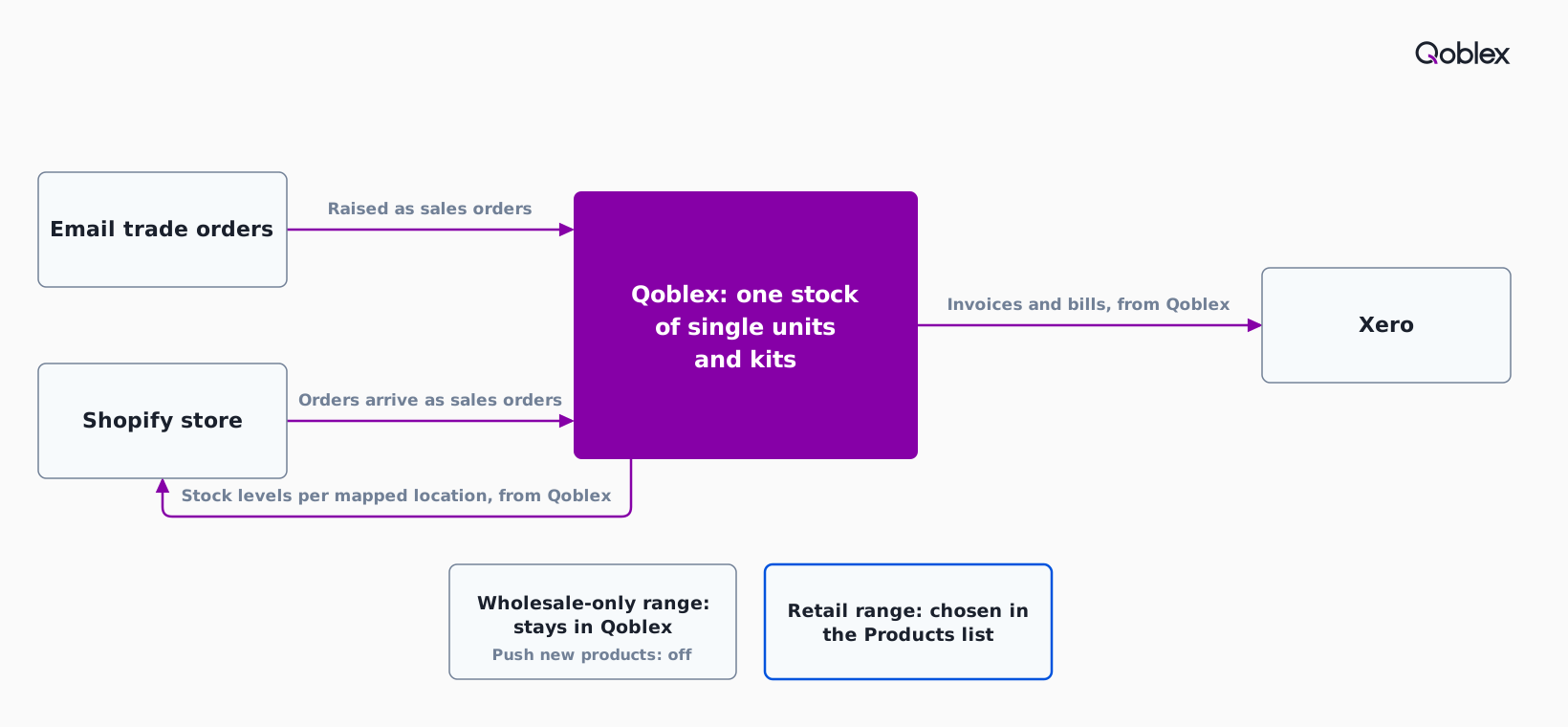
Once those seven steps are done, every order and document in the business follows the route in the diagram below, from the email inbox and the store into one Qoblex stock and on to Xero.
Does this fit your business?
A Qoblex setup with Push new products off and the retail range chosen from the Products list fits most trade-first distributors that add a small web store and keep their books in Xero. Professional lighting distributors selling fixtures singly and as packages, musical instrument and pro audio dealers with a trade side and a web shop, and electrical components distributors with a small web shop can choose their retail range from the Products list the same way. Security and CCTV distributors who sell cameras and recorders as kits fit too, as do IT hardware distributors, though serial-numbered stock needs the traceability add-on on Starter and Business, included on Scale. A distributor whose buyers would rather order for themselves is a different shape, a B2B ordering portal, told in the wholesale portal use case.
A business whose trade buyers order through Shopify’s own B2B features is better served by Shopify for that part. Shopify’s help centre says “To use Shopify B2B, you must set up your B2B customers as companies in your Shopify admin.” and “You can use B2B catalogs to choose which products and prices to offer your B2B customers.” For that business Shopify’s catalogs are the natural place to decide what trade buyers see, and Qoblex would sit behind the store for stock, purchasing and posting to Xero.
A simple catalogue that lives in Shopify is fine as it is. If every product is created in Shopify and the store carries most of the range, Shopify’s own status and publishing already decide what customers see: Shopify’s product status guide explains that customers can buy a product in a sales channel only when it is Active or Unlisted and is published to that channel.
Frequently asked questions
What happens to a new product when Push new products is off?
With Push new products off, a product created in Qoblex is not created in Shopify automatically, and Qoblex records a note that new products are not pushed. The product stays in Qoblex with its stock and orders, and the Products list channel actions can put it on the store later.
What is the difference between Push new products and Publish on creation?
Push new products decides whether a product created in Qoblex is created in Shopify automatically. Publish on creation decides whether a product created there goes live on the online store or stays unpublished. Both appear only when product information sync includes Qoblex to Shopify, and both are on by default.
Can a product go to one Shopify store and not another?
Yes. Each store has its own Shopify settings in Qoblex, including Push new products, and the Products list channel actions ask which store to act on, with at least one chosen. A distributor with two stores can switch pushing off on one and choose that store’s products from the list.
Does stock sync only for the products that are on the store?
Qoblex pushes stock per mapped location, sending Shopify the difference in available quantity, and a variant must already be linked to Shopify before its stock can be pushed. Stock therefore reaches the variants linked to the store, and the Sync Inventory? toggle switches each location on or off.
Should locally assembled kits be bundles or bills of material?
A kit assembled ahead and held as stock is a Bill of Material, and an Assembly production order turns its parts into kit stock. A bundle holds no stock of its own and counts how many kits its parts allow, which suits kits made up at dispatch. A bundle cannot be manufactured.
Does the Xero connection run both ways?
The Xero connection posts from Qoblex to Xero: sales invoices and supplier bills within a few minutes of authorization, and inventory journals once a day overnight. Only payments can sync both ways, when Two way payment sync is switched on for sales, purchases or both. Xero is a paid add-on on the Starter and Business plans.
Can the team keep taking trade orders by email?
Yes. Someone raises each email order as a sales order in Qoblex for the customer, whose assigned price list prices the lines, and Create Order moves it from Quote to Open so Qoblex can reserve stock. The order then draws on the same stock as Shopify orders, and its invoice posts to Xero.