



The Black Friday inventory checklist runs from 2 November to the week after Cyber Monday on 30 November 2026: place purchase orders while supplier last order dates are open, receive and authorize deliveries, count stock and set Buffers by Wednesday 18 November, switch Continue selling when out of stock off in Qoblex before Thanksgiving on 26 November, watch Available over the weekend, then deal with returns and slow stock.
On Wednesday 4 November the first week is half gone, so start at the first open row. The sales side is in our holiday sales tips.
What should a Shopify brand do with its inventory in the weeks before Black Friday 2026?
A Shopify brand with Xero or QuickBooks Online should spend the weeks before Black Friday on 27 November 2026 on six stock jobs in order: order, receive, count and set a Buffer, switch Continue selling when out of stock off in Qoblex, watch Available over the weekend, and deal with returns and slow stock afterwards. The National Retail Federation’s 2024 US survey with Prosper Insights & Analytics found that 38% of shoppers took advantage of sales specifically during the week before the Thanksgiving holiday weekend, in a season NRF called shortened. The figure counts people, not dollars, and in our reading it means the count and Buffers are done before Thanksgiving week; market figures are in our statistics guide.
| When | Action in Qoblex | Where it is covered |
|---|---|---|
| Week of 2 Nov: Wed 4 to Fri 6 | Check who can open Reporting > Inventory; on Reorder Inventory set Sales date and read Total Available, Incoming and Sold Quantity. | Forecast guide; Inventory reports |
| Wed 4 to Fri 6 | Choose Reorder Actions > Create Purchase Order, compare Lead Time on Pick Suppliers, create one draft order per supplier. | Lead times guide; Reorder actions |
| Fri 6 | Approve each draft order, or have someone with approval permission approve it, so the quantities count as incoming stock. | Lead times guide |
| Week of 9 Nov: Mon 9 to Fri 13 | Receive each delivery, or use With a Barcode Scanner, check the draft goods receipt note and Authorize. | Lead times guide; Receiving goods |
| Before every Authorize | Clear open sales orders that will never ship. | Lessons guide; Clearing open orders |
| Week of 16 Nov: Mon 16 | Confirm the person uploading the count has the Authorize Adjustments permission. | Stocktake from CSV |
| Mon 16 | On the Xero or QuickBooks Online integration's Inventory tab, confirm the Inventory Adjustments account. | Xero settings; QuickBooks settings |
| Tue 17 to Wed 18 | Download the stock CSV, fill Quantity and BufferQuantity, upload, review the Draft adjustment, Authorize now. | The count section below; Lessons guide |
| Week of 23 Nov: Mon 23 | Untick Continue selling when sold out in the integration settings, then switch Continue selling when out of stock off on every variant that should only ship from real stock and on bundle parts. | Lessons guide; Ready To Ship fix; Bundles |
| Mon 23 | Filter the Sales list by Ready To Ship and Awaiting Stock, Deallocate, then Allocate straight after. | Ready To Ship fix |
| Wed 25 | Compare Total Buffer Quantity with Total Available Quantity on Stock on Hand for the hero variants. | Lessons guide; Inventory reports |
| Weekend: Fri 27 to Sun 29 | Read Total Available Quantity on Stock on Hand each morning for the hero variants. | Lessons guide |
| Fri 27 to Sun 29 | If a delivery lands, clear old open sales orders first, then Authorize the receipt. | Clearing open orders |
| Mon 30 | Decide whether to lower the Buffer on hero variants that still have stock behind them. | Lessons guide; Product variants |
| Week after: Tue 1 to Mon 7 Dec | Decide for each return whether it goes back into sellable stock. | Returns guide |
| Tue 1 to Mon 7 | Open Inventory Aging to see how long leftover stock has sat, then decide to clear, bundle or write it off. | Slow stock guide |
| Tue 1 to Mon 7 | Filter Stock Movement to the Black Friday weeks and note what moved for next year's order. | Forecast guide |
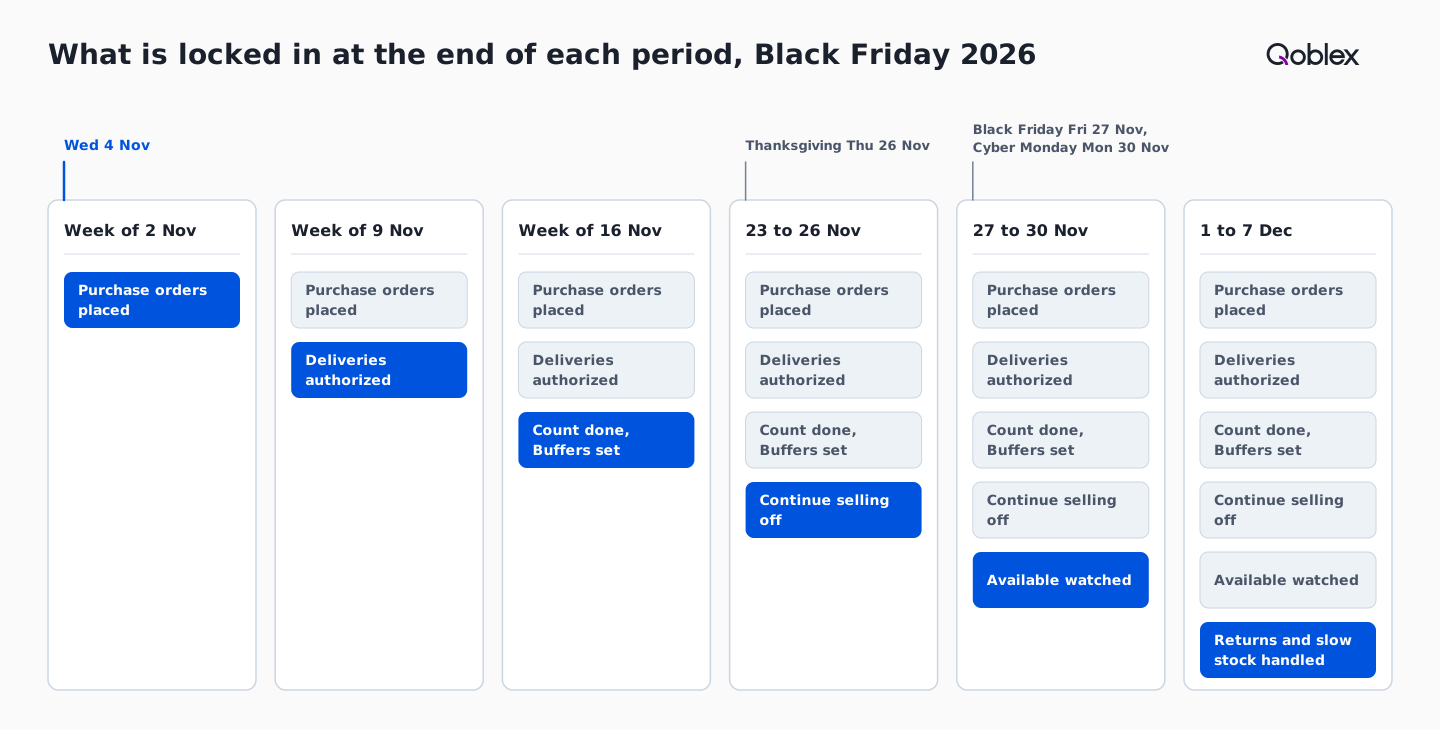
A row whose date has passed is done at the next opportunity, because the order of the weeks matters more than the day. The sections below cover only the rows that need a screen.
What should the week of 2 November cover: reorder, lead times and approval?
In the week of 2 November, Qoblex’s Reorder Inventory report lets a Shopify brand turn the variants running low into one draft purchase order per supplier, because the Pick Suppliers table shows each supplier’s Lead Time next to its Purchase Price, MOQ and MOV before the orders are created. Only users whose role grants the inventory reporting permission see the report, so the buyer checks access on the Wednesday.
The report opens on a last 30 days sales window, so the buyer sets Sales date to last year’s peak weeks before reading Total Sold Quantity, as our forecast guide explains. Lead Time comes from each variant’s Suppliers tab, where an understated figure can make reorder planning look safer than it is. In the example in our lead times guide, only the domestic supplier is still inside its last order date, so Pick Suppliers ends with one draft order; Quick Bulk Action can also pick the supplier with the shortest lead time.
Creating the orders receives nothing, as the Reorder Inventory help article shows. Approving a draft order is what counts its quantities as incoming stock, so a buyer without approval permission has someone who holds it approve the order. Then the goods reach the receiving bench.
What should be received and cleared in the week of 9 November?
In the week of 9 November the warehouse team receives each delivery on its purchase order and authorizes the goods receipt note, because a draft receipt does not move stock and only an authorized one brings the quantity into inventory at the Receive At location. The person at the bench chooses Receive or With a Barcode Scanner and checks the draft against the delivery; a batch or serial tracked line opens the Receive Batch dialog on Authorize.
Before anyone selects Authorize, the team clears open sales orders that will never ship. Authorizing allocates the new stock to orders linked to the purchase order first, then to Awaiting Stock orders oldest first, so received stock may not show as available in the store straight away. The help centre shows how to clear open sales orders before receiving stock.
How do you count stock and set a Buffer in one pass in Qoblex?
Qoblex’s Stocktake from CSV lets a Shopify brand count a warehouse in a spreadsheet and set a BufferQuantity for each variant in one upload, then creates a single Draft adjustment for the quantity changes that moves no stock until someone chooses Authorize. Two checks belong on Monday 16 November. The person who uploads needs the Authorize Adjustments permission, or the upload fails with a generic “Something went wrong while uploading your file” message rather than a permission message. On the Inventory tab of the Xero or QuickBooks Online integration, the accountant confirms the Inventory Adjustments account, because stock adjustments post against it.
Let’s assume a Shopify brand that sells candles and folded tees from one warehouse and keeps its books in Xero. It has 120 active variants, 15 of them hero variants, and two gift sets built from some of those parts. The team counts on Wednesday 18 November. Its stock CSV carries 120 rows; the team fills in Quantity for every counted variant and BufferQuantity for the 15 hero variants. The gift-set rows need nothing, because the upload ignores both columns for bundle products and a bundle’s stock is calculated from its parts. The preview reads 120 rows and 7 quantities that will change, and Qoblex creates a Draft adjustment with those 7 lines.
- In the left navigation select Adjustments, then select Stocktake, next to New Adjustment.
- Choose the Location, optionally filter by Supplier, Product Type, Brand or Tags, then select Prepare Stock CSV and Download Stock CSV.
- Fill in Quantity for each counted variant and BufferQuantity for the hero variants; a blank cell stays unchanged, and Id is left alone.
- Select Next, then drop the file on the upload step or select Browse File (.csv only, up to 10MB).
- Wait through Checking your file for problems and Applying your changes; if problems are listed, fix those rows and select Upload corrected file.
- Read the preview: rows read, quantities that will change and quantities already correct.
- Select View draft adjustment to check each line, or stay in the preview.
- Select Authorize now, in the preview or from the adjustment; Qoblex confirms the stock count was imported and the adjustment was authorized.
Buffer values are written to the catalog at upload, while quantity changes wait in the Draft until Authorize. Authorizing is final, so a wrong count needs a new adjustment, and if every counted quantity already matches, no draft is created. Our lessons guide covers Buffer size; the Stocktake from CSV help lists every column. Next comes the setting that decides what happens at zero.
What should be switched off before Thanksgiving?
Before Thanksgiving on Thursday 26 November, a Shopify brand switches off Continue selling when out of stock in Qoblex on every variant that should only ship from real stock, and on the parts of every bundle, because with the setting on, Qoblex allocates the full ordered quantity of those products and shows their orders as Ready To Ship with no stock behind them. The team works on Monday 23 November, in order. First someone unticks Continue selling when sold out in the Product Synchronization section of the Shopify integration settings, so the setting stops syncing either way and the store keeps the setting each product already has.
Then the team unticks Continue selling when out of stock in Bulk Edit Products, 50 products at a time or with Edit by CSV. On the Sales list they filter Ready To Ship and Awaiting Stock, choose Deallocate, then Allocate straight after, since in between the orders hold no stock. In our reading, products sold on pre-order keep the setting on. The Ready To Ship help article has each screen and our lessons guide the reasoning.
What should you watch from Black Friday to Cyber Monday?
From Friday 27 to Monday 30 November, the stock job in Qoblex is to read Total Available Quantity and Total Buffer Quantity on the Stock on Hand report each morning for the hero variants, because the available stock Qoblex sends to the store is on hand minus allocated minus buffer. A mid-weekend delivery follows the 9 November rule: clear old open sales orders, then authorize the receipt.
On Monday 30 November the team decides whether to lower the Buffer on hero variants that still have stock behind them, on the variant’s Inventory tab, which needs access to adjustments. Orders still Awaiting Stock after the weekend show what the brand really needs to buy or receive.
What belongs in the week after Cyber Monday?
The week after Cyber Monday, Tuesday 1 to Monday 7 December, is for three stock jobs: deciding which returns go back into sellable stock, deciding what to do with stock that did not sell, and reading the peak weeks’ Stock Movement for next year’s order. Our returns guide covers the first.
For the second, Inventory Aging shows how long on-hand stock has been sitting and offers Bulk Actions, and our slow stock guide weighs clearing, bundling or writing off. For the third, Stock Movement shows how stock changed over a period, line by line, so filtered to the Black Friday weeks it becomes the record our forecast guide turns into next year’s order.
When is a simple stock list enough?
A shared spreadsheet and the store’s own stock figure are enough for a brand that sells from one store, keeps stock in one place, buys from one or two suppliers and carries a few dozen variants, because the checklist then comes down to a count, one reorder and a daily look at the weekend. That simple way deserves credit: Shopify runs the store, Xero or QuickBooks Online keeps the books, and a spreadsheet does the same subtraction a system would.
The picture changes with stock in several places, gift sets built from parts, several stores or channels, deliveries in parts, old orders that can take a delivery, and books that must agree with the count. That is where Reorder Inventory, the Draft adjustment and the Inventory Adjustments account save the checking.
Frequently asked questions
What should be on a Black Friday inventory checklist?
Six jobs in order: reorder from Qoblex’s Reorder Inventory while last order dates are open; receive and authorize deliveries; count with Stocktake from CSV and set Buffers; switch Continue selling when out of stock off; watch Total Available Quantity over the weekend; handle returns and slow stock.
When should I start preparing inventory for Black Friday 2026?
Start now, with supplier orders. Black Friday is Friday 27 November 2026, Cyber Monday Monday 30 November and Thanksgiving Thursday 26 November. As of Wednesday 4 November, purchase orders go to suppliers first while their last order dates are still open, the count and Buffers are due by Wednesday 18 November, and Continue selling when out of stock goes off in Qoblex before Thanksgiving.
Should I count stock before Black Friday?
Yes, because the Buffer and the reorder both rest on a true count. Qoblex’s Stocktake from CSV takes the filled-in counts and creates one Draft adjustment when counts differ; nothing moves until Authorize now. Buffer values are written at upload, which needs the Authorize Adjustments permission.
How do I reduce overselling on Black Friday?
In Qoblex, set a Buffer on the hero variants, because the available stock Qoblex sends to Shopify is on hand minus allocated minus buffer. Then untick Continue selling when sold out in the store’s integration settings, switch Continue selling when out of stock off in Qoblex on stock-only variants and bundle parts, and Deallocate and Allocate their open orders, so only orders with real stock show Ready To Ship.
Where does the stock count show up in Xero or QuickBooks?
A stock count in Qoblex becomes a stock adjustment, which posts against the Inventory Adjustments account on the Inventory tab of the Xero or QuickBooks Online integration, unless an override rule sends it elsewhere. Check both before the count. QuickBooks Online sync is one-directional, from Qoblex to QuickBooks.
Does a gift set bundle need its own count?
No. In Qoblex a bundle’s stock is calculated from the availability of its parts, and the stocktake upload ignores Quantity and BufferQuantity for bundle products, so count the parts. Switch Continue selling when out of stock off on the parts too, because a bundle can only oversell when all its parts can.
Are the Xero and QuickBooks connections included in every plan?
No. In Qoblex, integrations, including the Xero and QuickBooks Online connections, are paid add-ons on the Starter and Business plans. Prices change, so see pricing for current plan details. The connection is what lets Qoblex post stock adjustments to the Inventory Adjustments account in your books.