


From Friday 27 to Monday 30 November, the stock team opens Qoblex each morning to read Total Available Quantity, Total Buffer Quantity and the Inventory Status on Stock Allocations, and each evening it prints pick lists for Ready To Ship orders and dispatches them. Orders Awaiting Stock show what to buy. Before a delivery is authorized, orders that will never ship are cleared.
The weeks before the sale are in our Black Friday inventory checklist and the market context in our statistics guide. This piece is the weekend itself, from the stock side.
What should a small team check in its stock system each day from Black Friday to Cyber Monday?
From Friday 27 to Monday 30 November, a small team running Qoblex reads Total Available Quantity and Total Buffer Quantity on Stock on Hand each morning, prints pick lists for its Ready To Ship orders each evening, and notes the variants showing Inventory Status Partial or Empty on Stock Allocations, plus one extra job a day.
| Day | Morning: what to read | Evening: what to do |
|---|---|---|
| Friday 27 November | Read Total Available Quantity and Total Buffer Quantity on Stock on Hand. Filter the Sales list by Awaiting Stock and Ready To Ship. | Select the Ready To Ship orders, choose Bulk Actions, then Pick Lists, and pick, pack and dispatch. Note every variant Partial or Empty on Stock Allocations. |
| Saturday 28 November | Filter the Sales list by Awaiting Stock. Clear the orders that will never ship, then authorize the delivery's receipt. | Print pick lists for the new Ready To Ship orders and dispatch. Open Requested Allocations on any variant still Partial. |
| Sunday 29 November | On Reorder Inventory, set Stock Level to Low stock ( Available + Incoming < Min Quantity ) and read which variants stay short. | Use Reorder Actions to Create Purchase Order or Create new transfer for those variants, and dispatch the day's orders. |
| Monday 30 November | Compare Total Available Quantity with Total Buffer Quantity and decide on the Buffer. | Dispatch the last Ready To Ship orders and export Stock Allocations for Tuesday's buying list. |
Two reads a day work because each leads to a decision, and the hours between leave time to chase a supplier, move stock or hold an order with a doubtful address. In our reading, the routine needs one owner by name, who may be the stock lead, and a second person who can authorize receipts.
The Sales list is the order-side view and the inventory reports the stock-side view. Switching off Continue selling belongs to the week before Thanksgiving, in the checklist; by Friday 27 November the job is reading the screens and knowing what their numbers mean.
What do the Stock on Hand and Stock Allocations reports tell you on a weekend morning?
In Qoblex, a weekend morning starts on Reporting, then Inventory, where Stock on Hand shows each variant’s Total Available Quantity next to its Total Buffer Quantity and Stock Allocations shows an Inventory Status of Empty, Partial or Full, so the team sees which variants are covered before the first order.
Available is on hand minus what is allocated to sales orders minus the Buffer, and it is the number Qoblex sends to Shopify and WooCommerce. The help centre describes Total Available Quantity as the quantity left after allocations, so the stock lead reads it beside Total Buffer Quantity, not alone. Total Quantity, Total Allocated Quantity and Total Incoming Quantity share the row, with a block per location where there are several, and all rest on the last pre-Black Friday count.
On Stock Allocations, Empty means nothing is allocated even though orders are requesting the variant, Partial means some but not all of the requested quantity is allocated, and Full means allocation meets or exceeds it. The Requested Allocations cell, with its tooltip “Check Allocations details here”, opens the orders asking, and On Backorder Quantity sits beside it. Bundles are excluded by default, so a gift-set brand sees the parts. Shopify orders are allocated from the Shopify location each item is mapped to, and Amazon orders when imported; Amazon is an inbound channel in Qoblex, so no stock figure goes back to it. A variant covered on Friday may not be by Sunday.
How do you spot a SKU that is selling out while there is still time to act?
A team spots a selling-out SKU in Qoblex by setting the Stock Level filter on Reorder Inventory to Low stock ( Available + Incoming < Min Quantity ), which lists variants still short once incoming stock is counted, and by reading the daily low-stock email from Advanced Notifications.
The filter compares each variant with its alert level, and a variant without one is not matched, so on Thursday 26 November the team checks each hero variant has one. Sales date sets the window for Total Sold Quantity.
Advanced Notifications, under Integrations, sends a daily low-stock email to the employees the team chooses, filtered by tags, brands, suppliers or a single location if needed. It goes out at 1:00 AM UTC, shown in local time, is not an immediate notification for each stock movement, and needs alert levels; the help centre calls it an exception review. So it is set up before Friday, and during the day the filter is where the team looks.
For a variant that stays short, the buyer selects the row and uses Reorder Actions to Create Purchase Order, or Create new transfer from a location with stock to spare. A Sunday purchase order helps only if the supplier can still deliver, as our lead times guide explains; how much to order is in our forecast guide. Then stock arrives while orders wait for it.
What should you do when a delivery arrives while 30 orders are Awaiting Stock?
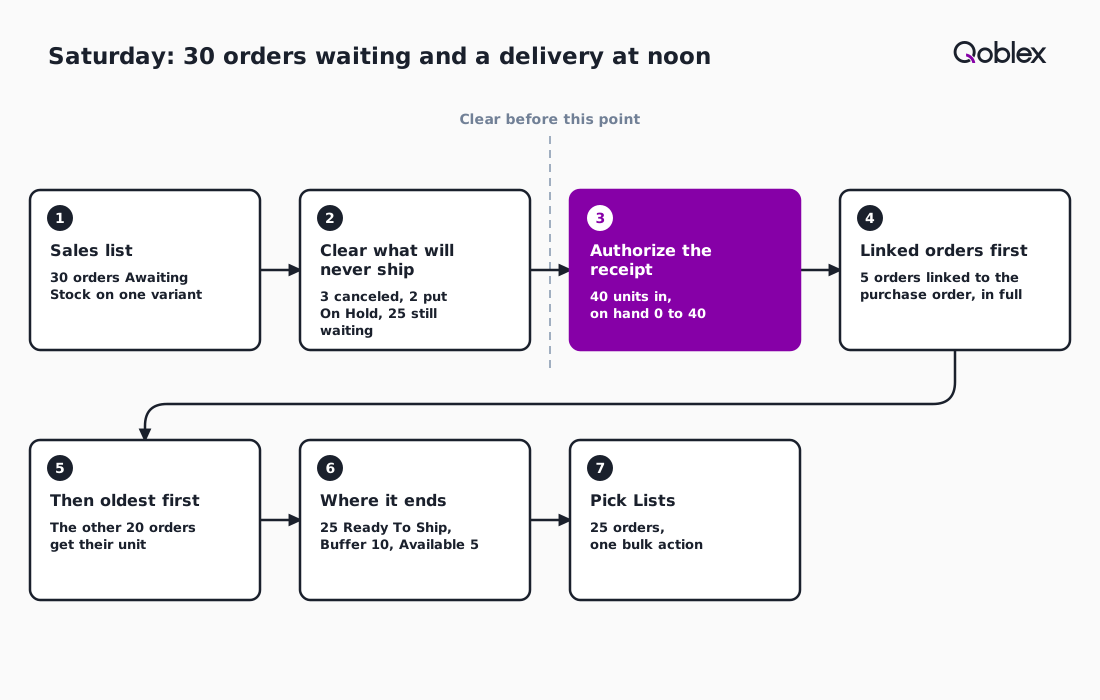
When a delivery arrives while orders are Awaiting Stock, the stock team clears the orders that will never ship before authorizing the goods receipt in Qoblex, because Qoblex allocates received stock as soon as the receipt is authorized, first to orders linked to the purchase order, then to Awaiting Stock orders oldest first.
Let’s assume a Shopify brand that sells hair and skin care from one warehouse and keeps its books in Xero. On Saturday morning, 28 November, one hero variant has 30 orders Awaiting Stock, each for one unit, and a supplier delivery of 40 units is due at noon. At 8:30 a.m. the stock lead sees the 30 on the Sales list, Total Quantity 0 and Total Buffer Quantity 10 on Stock on Hand, and the variant Empty on Stock Allocations.
Which orders should be cleared before you authorize?
Orders that will never ship are cleared first, because a team that tidies up after authorizing finds the stock already taken. Between 9:00 and 11:30 a.m. the stock lead cancels three duplicates one at a time, through More actions, then Cancel Order, since there is no bulk cancel and canceling cannot be undone.
Two orders with an address query go on hold through Bulk Actions, then Put On Hold, on the Sales list, which releases any stock they hold and keeps them out of the background job. That leaves 25 Awaiting Stock. The guide to clearing open orders has the method, and the Shopify troubleshooting page says the same.
Which orders does the receipt allocate first?
The receipt allocates orders linked to the purchase order first and in full, then a background job takes the rest oldest first, by creation in Qoblex. On Friday evening the buyer had linked the five newest orders with Link an order on the purchase order’s Related Orders card. Only links made from the purchase order count, Create Purchase Order included, and a linked order takes stock even on hold, so an unwanted link is removed, and the purchase order saved, before authorizing.
At noon the delivery is checked at the bench against the draft goods receipt note, which moves no stock while a draft. At 12:30 p.m. the stock lead authorizes it: on hand goes from 0 to 40, the five linked orders take 5 units, the other 20 get theirs oldest first, and 25 orders show Ready To Ship. The 15 units left sit above the Buffer of 10, so Available is 40 minus 25 minus 10, which is 5, the number the store now sells against. With 2 on hold and 3 canceled, all 30 are accounted for: 25 + 2 + 3 = 30.
By 1:00 p.m. the delivery has become 25 parcels to pack.
How do you ship the orders that just became Ready To Ship?
A team ships the orders that became Ready To Ship by filtering the Sales list to Ready To Ship, selecting them, choosing Bulk Actions, then Pick Lists in Qoblex, and working each order through Ship, Pick, Pack and Dispatch.
With more than one order selected, Qoblex asks whether to merge the pick list items or print them separately, and the stock lead merges the 25 into one list. Packing Slips sits in the same Bulk Actions menu, with Include orders that are neither picked nor packed for orders not at those stages. Bulk Pick and Pack run as one batch: if one order fails, nothing changes, so the team fixes the named order and runs the selection again.
Each shipment starts as a Draft and moves through Pick, Pack and Dispatch, and Dispatch reduces on-hand stock, so the bench dispatches as the parcel leaves. A part-covered line ships what is ready and leaves the rest for a second shipment. Print Shipping Label appears only when a label already exists, since labels come from the ShipStation integration. Then Monday’s read comes round.
What changes on Cyber Monday, and what carries into Tuesday?
On Cyber Monday, the stock team compares Total Available Quantity with Total Buffer Quantity on the hero variants, decides whether to lower each Buffer, and exports Stock Allocations in Qoblex so the orders still Awaiting Stock become Tuesday’s buying list.
The Buffer is the team’s call per variant: one with plenty on the shelf may not need all of it, while one nearly gone keeps it. Someone with access to adjustments changes it on the variant’s Inventory tab; why a Buffer exists and its size are in our lessons guide.
Export Report runs in the background and Qoblex emails a download link, which the help centre says can take several minutes for a large report, so the export starts before the last dispatch. Read with the Sales list filtered to Awaiting Stock, it is Tuesday 1 December’s list of what to buy or receive. After the weekend come holiday returns and slow stock.
When is the store’s own stock view enough?
The store’s own stock figure and the order list are enough for a brand that sells from one store, holds stock in one place, carries a few dozen variants and ships orders the day they arrive, because the weekend routine then comes down to reading one number each morning and packing what was sold. In our reading, that is a real routine. A printed order list is a pick list, and fewer moving parts leave less to go wrong.
The picture changes with stock in several locations, orders waiting for deliveries, purchase orders raised for particular orders, many orders picked at once, or books that must agree with the count. In that messy middle, Awaiting Stock versus Ready To Ship, the receipt’s allocation order and bulk pick lists replace checking from memory.
Frequently asked questions
What should I check in my inventory system every day of Black Friday weekend?
Each morning, read Total Available Quantity and Total Buffer Quantity on Stock on Hand and the Inventory Status on Stock Allocations for your hero variants. Each evening, print pick lists for Ready To Ship orders, dispatch what left the building, and note which variants still have orders Awaiting Stock.
Does Qoblex send an alert the moment a SKU runs low?
Qoblex does not send an immediate alert for each stock movement. Advanced Notifications sends a daily low-stock email to the employees you choose, at 1:00 AM UTC shown in each user’s local time, and covers only products with a stock alert level. During the day, use the Stock Level filter on Reorder Inventory.
What does Inventory Status Partial mean on Stock Allocations?
Partial means some, but not all, of the quantity that orders request is allocated. Empty means nothing is allocated yet, even though orders are requesting the variant, and Full means the allocated quantity meets or exceeds the requested quantity. Open the Requested Allocations cell to see which orders are asking.
Can I print pick lists for many orders at once?
Yes, in Qoblex. On the Sales list, select the orders, choose Bulk Actions, then Pick Lists. With more than one order selected, Qoblex asks whether to merge the pick list items into one combined list or print each order’s list separately. Packing Slips works from the same Bulk Actions menu.
What if orders show Ready To Ship but the shelf is empty?
Check Continue selling when out of stock. With it on, Qoblex reserves the full ordered quantity whatever is on hand, so every order looks Ready To Ship. First untick Continue selling when sold out in the store’s integration settings, then switch it off in Qoblex for products that should ship only from real stock, as our checklist sets out. Then deallocate every open order that contains them and allocate those orders again straight away, so only the orders you can actually ship show Ready To Ship.